
A practical checklist for professionals choosing a paper-like writing tablet for notes, PDFs, meetings, privacy, travel, and team workflows.
A writing tablet for professionals should make work easier to capture, review, and act on. It should not become another screen that adds noise to a busy day.
For lawyers, consultants, doctors, designers, teachers, and project managers, the practical question is simple: does the device improve handwriting feel, PDF annotation, privacy control, daily carry, meeting review, and file export in a real work routine?
What Makes a Professional Writing Tablet Worth It?
A professional paper tablet is worth considering when handwritten thinking still matters. Meeting notes, contract review, reading packets, lesson planning, design sketches, project summaries, and client follow-ups all benefit from a quiet writing surface.
The device should not be judged by specifications alone. The better test is whether it improves daily work: open a file, write naturally, annotate clearly, export safely, and return to the right note later.
A strong professional writing tablet is not a laptop replacement. It is a focused layer for reading, handwriting, marking, planning, and review. The laptop can still handle final documents, spreadsheets, presentations, and production work.
Simple rule: choose a writing tablet when handwritten notes, PDF markup, quiet reading, and meeting follow-up happen every week.
Best use
Notes and review
Long notes, PDF markup, focused reading, meeting preparation, and follow-up planning.
Poor fit
Production-heavy work
Heavy spreadsheets, video meetings, desktop software, and color-heavy creative production work.
Best next step
Choose by workflow
Start with the work scene, then compare screen size, handwriting comfort, PDF needs, and carry style.
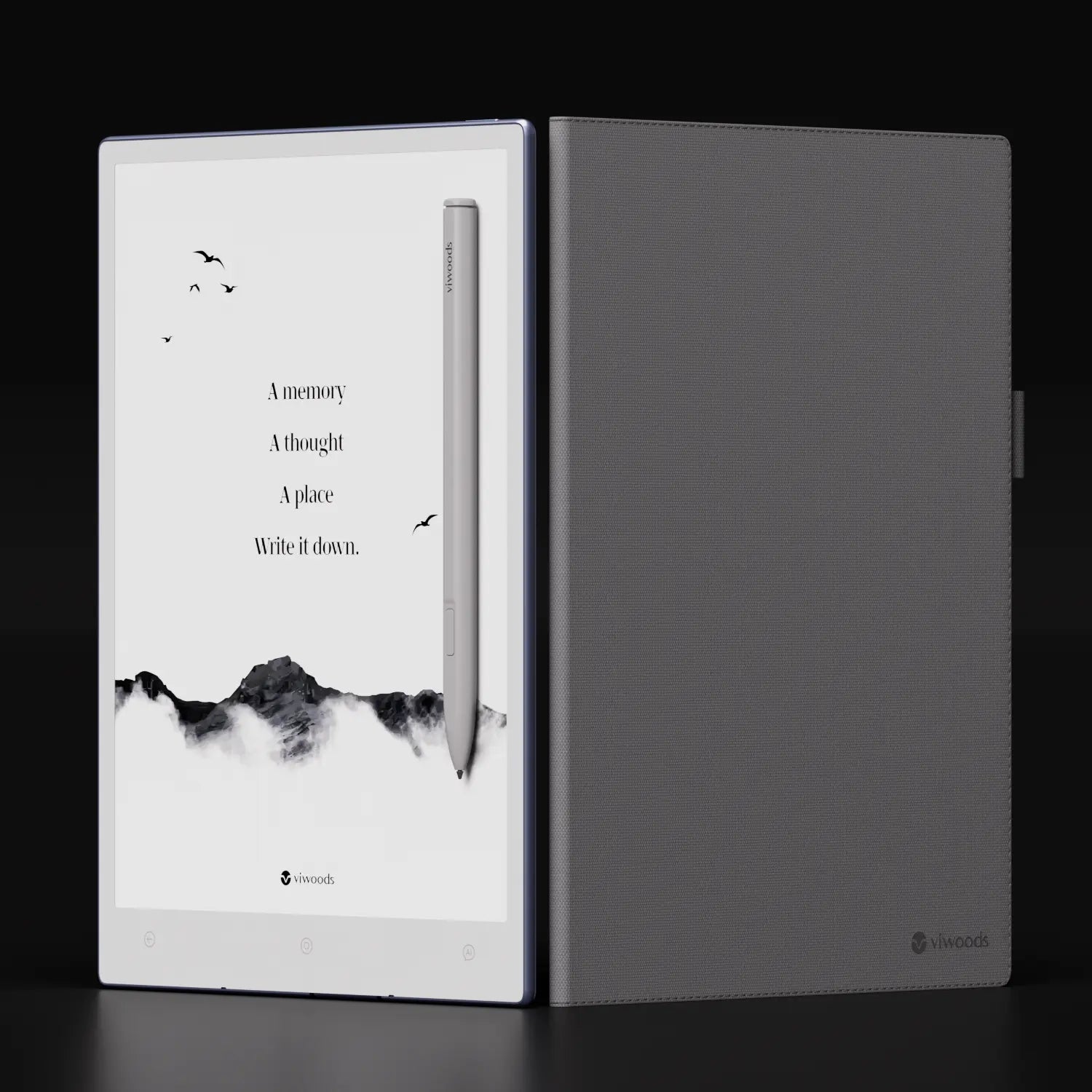
Who Needs a Professional Writing Tablet?
A professional writing device is useful when notes are more than reminders. They may include meeting decisions, clause comments, visual ideas, project risks, reading summaries, training notes, or follow-up actions.
This is why the same device can serve different jobs in different ways. A lawyer may use it as a legal note tablet. A consultant may use it for discovery notes. A teacher may use it for reading, lesson planning, and class preparation.
Lawyers
Contracts and clauses
Check PDF annotation, export, file control, and readable margins for long review sessions.
Consultants
Discovery and workshops
Templates, tags, handwriting conversion, and clean follow-up notes matter most.
Doctors and trainers
Reading and private draft thinking
Privacy policy, file movement, reading comfort, and low-glare review are important.
Designers
Sketches and brief comments
Pen precision, page space, rough visual notes, and later export help early-stage ideas move forward.
Project managers
Decisions and next steps
Meeting pages should separate decisions, risks, blockers, owners, and deadlines.
Writing Tablet for Professionals: Selection Checklist
Most comparison pages focus on writing feel, pen delay, templates, export, and cloud sync. Those points matter. Still, the better decision comes from testing each point inside real work scenes.
Handwriting feel
The page should feel stable during long notes. Pen response, surface texture, palm rejection, and grip comfort matter more than a short demo suggests.
A good handwriting tablet should allow natural hand rest and quick diagrams, margin symbols, arrows, and meeting marks without constant correction.
PDF and document markup
Contracts, reports, lecture notes, briefs, manuals, and research PDFs need readable margins and reliable export.
A strong PDF annotation tablet should make highlights, handwritten notes, tags, and review marks easy to revisit later.
Privacy and export
Professional notes often contain sensitive draft thinking. Export format, cloud choices, cable transfer, and account access need attention.
The safest workflow is the one that matches existing policy. A device should support approved file movement, not create shortcuts around it.
Daily carry
A large screen helps with PDFs and planning. A smaller model may fit travel, hallway notes, client visits, and short meetings better.
A protective case and reliable pen storage also matter. Small friction often decides whether a tablet stays useful.

Writing Tablet vs Laptop vs General Tablet
E Ink matters because it supports a paper-like reading and writing habit. For display background, the official E Ink site explains the technology behind ePaper display products.
However, a paper tablet should not replace every device. Instead, it should handle the focused layer of work: notes, reading, marking, planning, and review.
Long handwriting
Paper tablet
Strong for notes, diagrams, outlines, meeting maps, and written thinking.
Final production
Laptop
Best for final documents, spreadsheets, presentations, browser work, and desktop software.
Color files
General tablet
Strong for color-rich files, video, media, creative apps, and fast app switching.
Meeting focus
Paper tablet
Useful for listening, writing, marking decisions, and keeping attention away from tabs.
Practical rule: use a paper tablet for thinking and review. Use a laptop for production, spreadsheets, and final documents.
Real Professional Workflows
A paper tablet becomes valuable when it fits a repeatable workflow. In legal work, that may mean reading a contract, marking clauses, writing questions, and exporting a reviewed copy. In consulting, it may mean turning a messy discovery call into clean follow-up points.
For project management, the device should help separate decisions from opinions. For design work, it should allow rough sketches before ideas move into production software. For teaching, it should make reading notes and lesson plans easier to revisit.
Before a meeting
Prepare the page
Open a meeting template. Add the agenda, key questions, and expected decisions before discussion starts.
During the meeting
Capture what matters
Capture decisions, risks, objections, and next steps. Use symbols and short phrases instead of full transcripts.
After the meeting
Convert and export
Review pages, convert useful points, export files if needed, and move follow-up items into the work system.

Viwoods Model Recommendation
The right Viwoods model depends on the work pattern. A full-size device fits longer notes and document review. A compact model fits travel and fast capture.
Best full-size choice
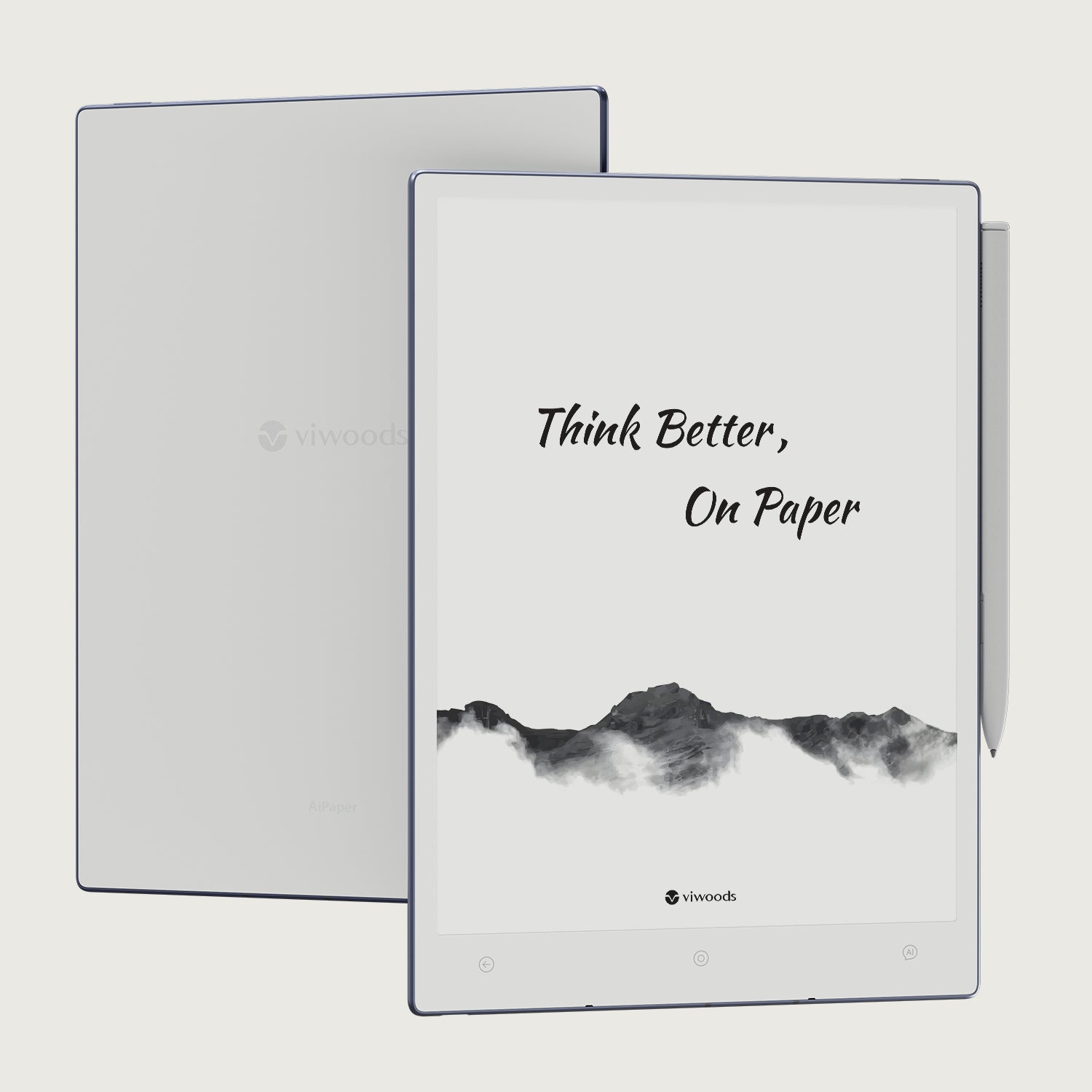
Viwoods AiPaper
For document-heavy work, Viwoods AiPaper is the strongest starting point. It gives more room for meeting pages, PDF margins, planning templates, and visual thinking.
View AiPaperBest portable direction
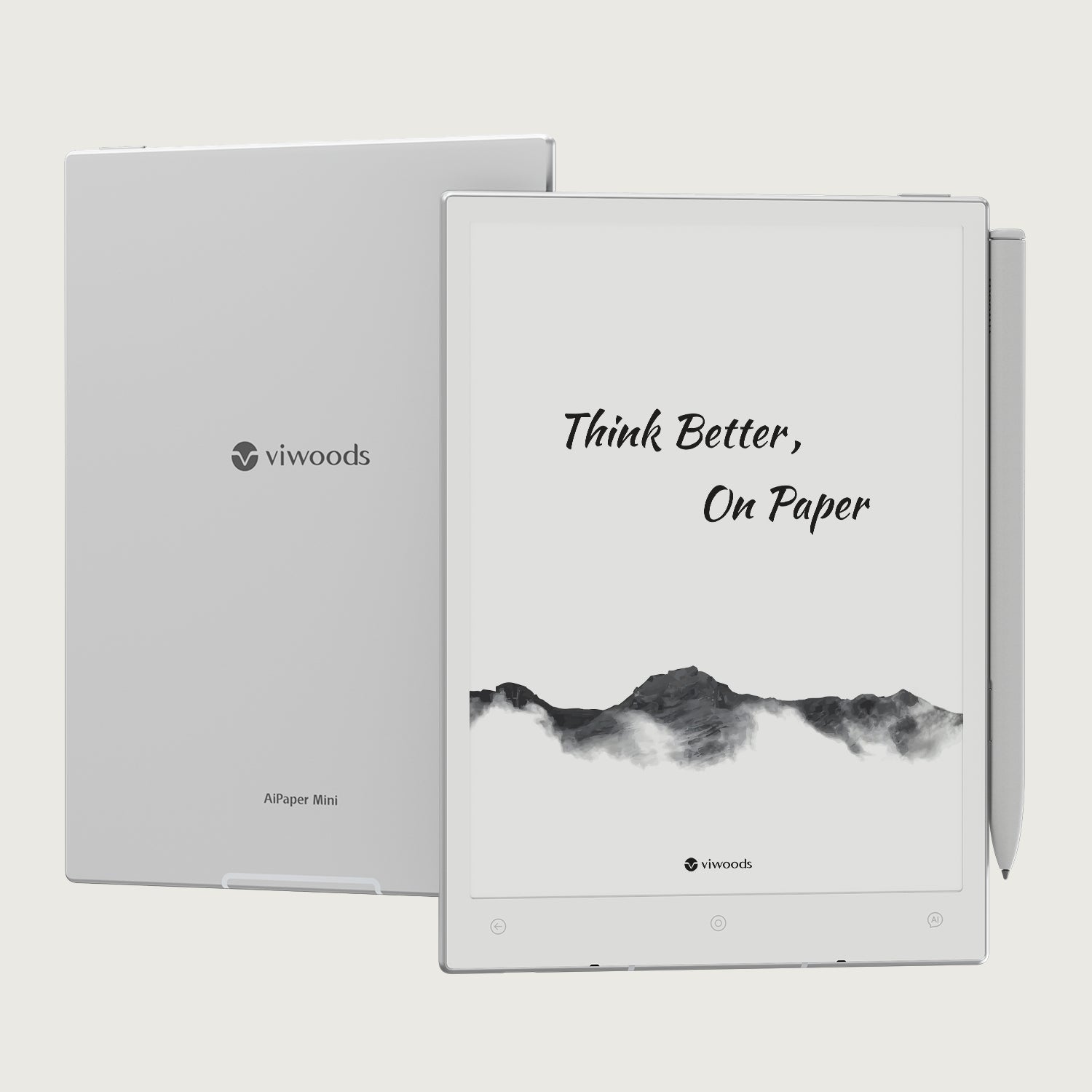
AiPaper Mini
AiPaper Mini makes sense when daily carry matters more than full-page document space. It suits travel days, short meetings, quick ideas, and portable planning.
View AiPaper MiniCompare by work style
Paper Tablet Collection
Compare paper tablets by notes, PDFs, travel habits, accessories, writing space, and daily carry needs.
Compare Models
Common Selection Mistakes
A good paper tablet can still feel wrong if it is chosen for the wrong job. The final decision should come from weekly workflow, not only from a feature list.
Choosing only by screen size
A larger screen helps with PDFs. However, a smaller device may be used more often during travel.
Ignoring export
Notes are useful only when they can move into the right file path after the meeting.
Expecting laptop replacement
A paper tablet is better for thinking and review, while a laptop remains better for final production.
Forgetting team rollout
For organizations, a pilot should test templates, privacy rules, support needs, and real meeting use.
Team Procurement and Next Step
For a team, start with a small pilot. Test one meeting workflow, one PDF workflow, and one export workflow before ordering broadly.
A simple pilot should include different roles. One person can test meeting notes, another can test PDF annotation, and another can test travel carry. After that, procurement becomes clearer.
Team procurement checklist
Define the main workflow before choosing a model.
Test handwriting comfort in a real meeting.
Mark up a real PDF and export the file.
Confirm privacy and storage rules.
Choose accessories for daily carry and pen readiness.
Collect feedback before expanding the rollout.
FAQ
What is the best writing tablet for professionals?
The best choice depends on the main workflow. For full-size handwritten notes, PDF annotation, and planning, Viwoods AiPaper is the strongest starting point. For lighter travel capture, AiPaper Mini may fit better.
Is E Ink good for long writing sessions?
Yes. E Ink supports a paper-like visual experience that works well for long reading and handwriting blocks. It is especially useful when focus matters more than color media.
Can I annotate PDF contracts?
Yes. A paper tablet is useful for contract review when it supports readable margins, handwritten notes, highlights, and clean export. Always match the file path to workplace privacy rules.
Is a writing tablet useful for client meetings?
Yes. It can capture questions, diagrams, decisions, and action items without the distractions of a laptop. A simple meeting template makes review easier after the session.
Which Viwoods model fits professionals?
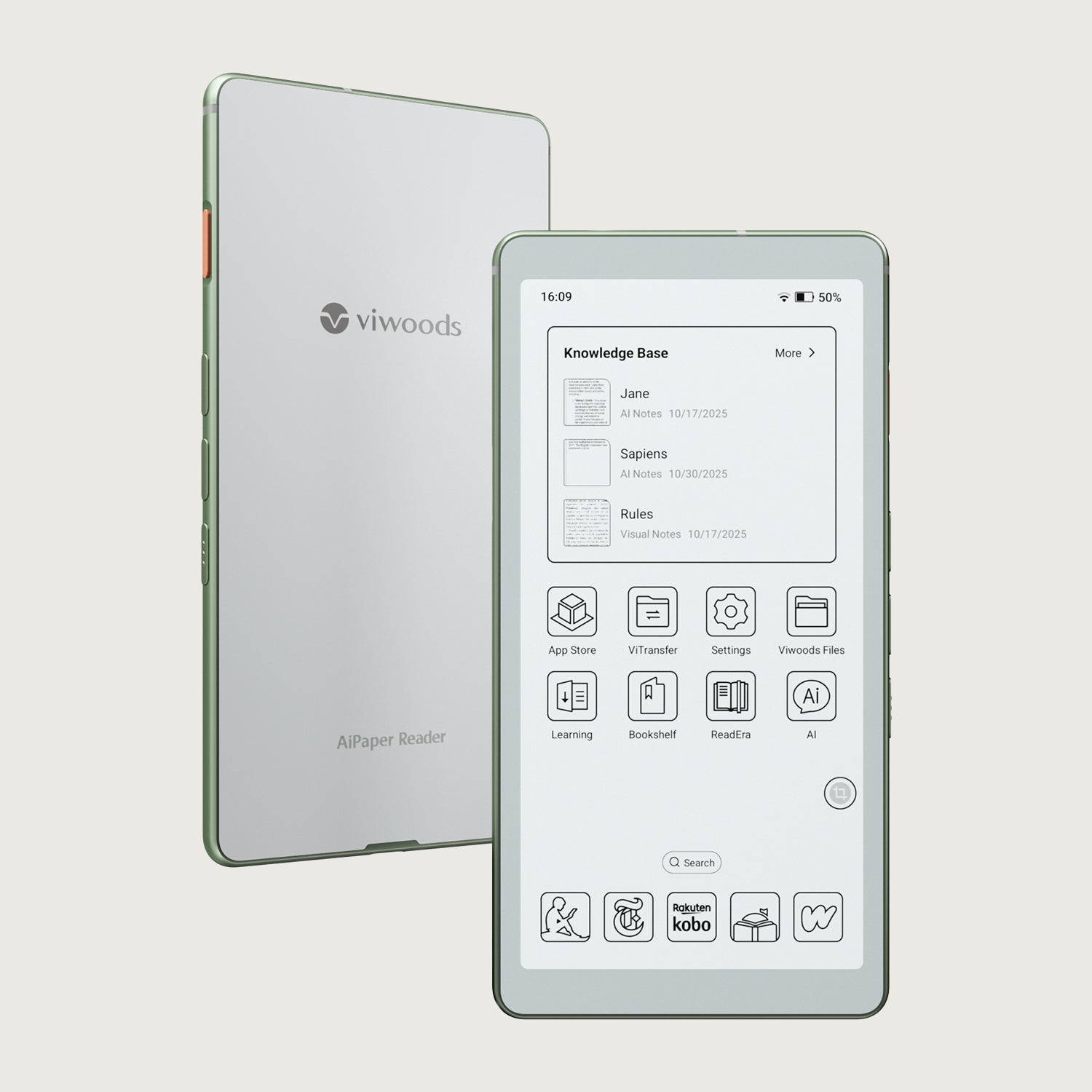
AiPaper fits document-heavy professionals who need full-page notes and PDF markup. AiPaper Mini fits lighter carry and quick capture. Reader models are better when reading is the main task.
Final Advice
A professional paper tablet should earn its place by making work clearer. It should improve handwriting, PDF review, note organization, privacy control, and follow-up without pretending to replace every work device.
For full-size notes and document markup, choose AiPaper. For portable daily capture, compare the paper tablet range. For team procurement, start with the Viwoods business path and test the workflow before scaling.
List the three most common handwritten workflows in a normal week.
Compare screen size, PDF needs, privacy rules, and daily carry style.
Open the right product page or business inquiry path before a final decision.
Guides أقراص ورقية
How to Turn Meeting Notes into Action Items with AI
E Ink Tablet for Training and Onboarding: Manuals, Notes and Knowledge Capture
E Ink Tablet for Field Teams: Offline Notes, Forms and Daily Review
E Ink Tablet for Compliance Audits: Checklists, Evidence Notes and Follow-Up
Fabric vs Leather Tablet Case: Which Material Fits Daily Carry?
How to Carry a Paper Tablet and Stylus Together Without Damaging the Screen
How to Choose a Protective Case for an E Ink Paper Tablet
Paper Tablet Accessories Checklist: What You Need for Daily Carry
How to Store an EMR Stylus Safely: Protect the Nib, Magnet and Tablet
Viwoods AiPaper
$549.00
Viwoods AiPaper Mini
$429.00
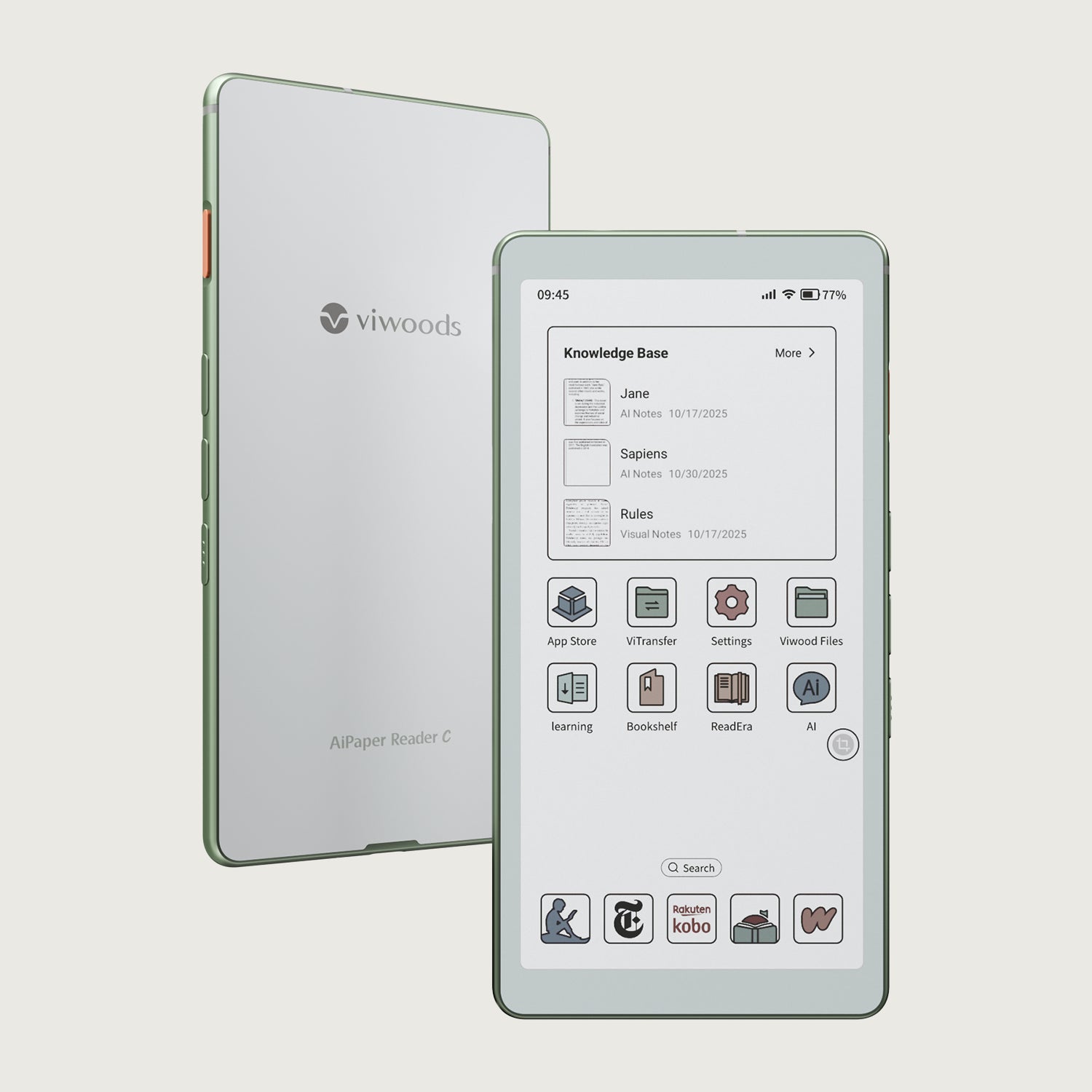
قارئ Viwoods AiPaper الملون
$289.00
قارئ Viwoods AiPaper
$279.00