
A calm work setup guide for using Viwoods AiPaper to take meeting notes, review PDFs, organize files, and stay focused during deep work.
Modern work needs a quieter place for thinking, reviewing and planning. A focused e ink tablet can support meeting notes, PDF annotation, task follow-up and deep reading without turning every work session into another screen full of tabs.
The Work Problem: Too Many Screens and Scattered Files
Today, office work rarely fails because of a lack of software. Instead, the problem often comes from too many active places competing for attention. Notes sit in one app, PDFs live in another folder, tasks stay in a calendar and quick thoughts disappear inside message threads.
Meanwhile, the main work screen carries every open loop. A laptop handles calls, writing, spreadsheets, dashboards, browser research and team communication. However, that same flexibility can make careful reading and decision notes feel fragmented.
As a result, work that should feel calm becomes noisy. A strategy memo opens next to email. A PDF review competes with chat alerts. A planning page becomes another tab among twenty unfinished tabs.
Therefore, a better setup starts with role separation. The laptop can remain the production machine. The phone can remain available for urgent contact. A paper-style tablet can hold meeting notes, reading, markup and daily planning in a quieter layer.
A calmer work surface has one clear purpose
In practice, the aim is not to replace every screen. The aim is to give thinking work a stable home. Meeting records, PDF comments, reading notes and next-action lists become easier to manage when they are not mixed with every active work channel.
Meeting Notes Workflow for Focused Work
First, meeting notes need structure before the meeting begins. A blank page feels flexible, yet it often creates messy notes. A simple meeting template works better because it reduces decisions during the conversation.
For example, a useful page can include four zones. One zone holds agenda points. Another captures decisions. A third records open questions. Finally, a small action list turns discussion into follow-up work.
During the meeting, handwriting slows the pace in a helpful way. It discourages full transcription and supports selective listening. Instead of typing every sentence, the note-taker captures decisions, risks, dates, owners and unresolved points.
After the meeting, the same page should move into a short review. Important tasks can shift into a daily plan. Questions can become a follow-up list. Decisions can remain visible for the next review cycle.

Before
Prepare a repeatable page
A prepared page should include the meeting title, date, project name and expected outcome. This small habit makes the note easier to understand later.
During
Capture meaning, not noise
The best notes are usually brief. Short notes force the main point to stand out and help separate listening from reacting.
After
Turn notes into follow-up
Decisions can be circled, questions can move into a follow-up area and tasks should be rewritten with a clear owner and deadline.
For instance, “send summary” is too vague. A better note says, “send one-page summary to the research team by Thursday.” Clear wording prevents rework and reduces hidden responsibility.
PDF Annotation: Review, Mark and Return Files
First, PDF work often breaks focus because files arrive from many places. A report may come by email. A contract may sit in cloud storage. A research paper may open inside a browser.
However, serious review requires more than opening a file. It needs a repeatable path from intake to markup to sharing. Without that path, annotation becomes another private pile of unfinished work.
Therefore, a useful PDF workflow has three phases. First, the document enters the right workspace. Next, it receives clear marks. Finally, the reviewed file returns to the right folder, project space or discussion.

Step one
Bring the document into the right place
File intake should be predictable. A proposal can sit inside a project folder, while a research paper can sit inside a topic folder.
Step two
Mark the PDF with a simple code
A star can mark a strong idea. A question mark can show uncertainty. A box can mean decision required.
Step three
Save the file where work can continue
A marked report may return to a cloud folder. A reviewed contract may move to a legal review folder.
For research papers, a three-layer system works well. First, highlight evidence. Next, write margin interpretation. Finally, create a short synthesis note with key findings and next questions.
For more detailed PDF routines, the Viwoods guide to annotate and organize PDFs can support a deeper workflow without turning this article into a basic tool tutorial.
Focus and Productivity Without Overclaiming
First, focus does not come from one device alone. Work quality still depends on clear priorities, a realistic schedule and a thoughtful environment. However, a quieter writing and reading surface can reduce friction.
A paper-style display helps by lowering visual urgency. Bright app grids, moving feeds and colored notification badges are not always needed during review. A calmer screen can make reading feel more deliberate.
At the same time, the benefit should stay realistic. A tablet cannot fix unclear meetings, overloaded schedules or poor file naming. It can only support better routines.
Therefore, the most practical benefit is workflow separation. Notes and PDFs move away from the same screen used for messaging and multitasking. This separation can make review sessions feel more intentional.
Deep work needs an output stage
In practice, deep work usually starts with reading, but it should not end there. A dense report, academic paper or strategy memo becomes useful only after it creates a decision, summary or next step.
Therefore, each focused review block should begin with a purpose statement. A simple line such as “find risks,” “extract three themes” or “prepare questions” gives the session direction.
Finally, a short end-of-session summary helps memory. Three to five points often capture enough. The goal is not to rewrite the document; it is to create a bridge from reading to action.
File Sync, Daily Planning and Task Follow-Up
First, a work tablet becomes more useful when notes can move. A meeting page may need to become a summary. A marked PDF may need to return to a project folder. A task may need to appear in the next planning session.
Meanwhile, sync should not feel like a separate project. The workflow should define where active files live, where finished files go and which transfer method fits each situation.
For routine files, cloud transfer may be convenient. For sensitive notes, a more controlled local path may fit better. A clear rule prevents file movement from becoming another source of friction.

Additionally, daily planning should stay light. A daily page can hold the top priorities, scheduled meetings and documents that require review. It should not become a complex project management system.
After each meeting, five minutes of cleanup can protect the system. Raw notes become decisions, questions and tasks. Annotated files return to the correct folder before they become hidden backlog.
For transfer options and sharing paths, the Viwoods article on file sync and sharing across devices gives a useful companion reference.
A Work-Focused Checklist for Choosing the Right Setup
First, the right device should fit the actual routine. A person who mainly reads PDFs needs different strengths from someone who takes meeting notes all day. A research-heavy workflow also differs from a travel-heavy workflow.
Therefore, the checklist should focus on work outcomes. The better question is not whether the device looks minimal. The better question is whether it supports the full loop from capture to review to sharing.
01
Writing feel and stylus control
Handwriting should feel stable enough for long sessions, quick notes, margin marks, diagrams and corrections.
02
PDF annotation tools
Highlights, margin notes, page navigation, zoom and export all matter during real document review.
03
File transfer and sync
A strong setup should support more than one transfer path so the workflow does not depend on a single method.
04
Folder structure and search
The best archive is the one that makes meeting notes, reviewed PDFs and project records easy to find weeks later.
05
Portability and accessories
Case protection, stylus storage and writing comfort matter more over time than they seem on day one.
Work Scenarios Where a Calm Paper-Style Setup Makes Sense
Managers
Meeting records, review comments and follow-up lists stay in one calm place while the laptop handles dashboards, presentations and final writing.
Consultants
Interviews, workshops and post-session synthesis can begin as handwritten context and later become structured recommendations.
Researchers
PDF marks can capture evidence, while separate note pages can hold interpretation, themes and future questions.
Legal and compliance teams
Markups can highlight risk, ambiguity and required clarification while file handling rules still follow internal standards.
Hybrid teams
Active notes travel with the device. Finished documents can move through an approved transfer method when the review is complete.
How Viwoods AiPaper Fits Notes, PDFs and Focused Work
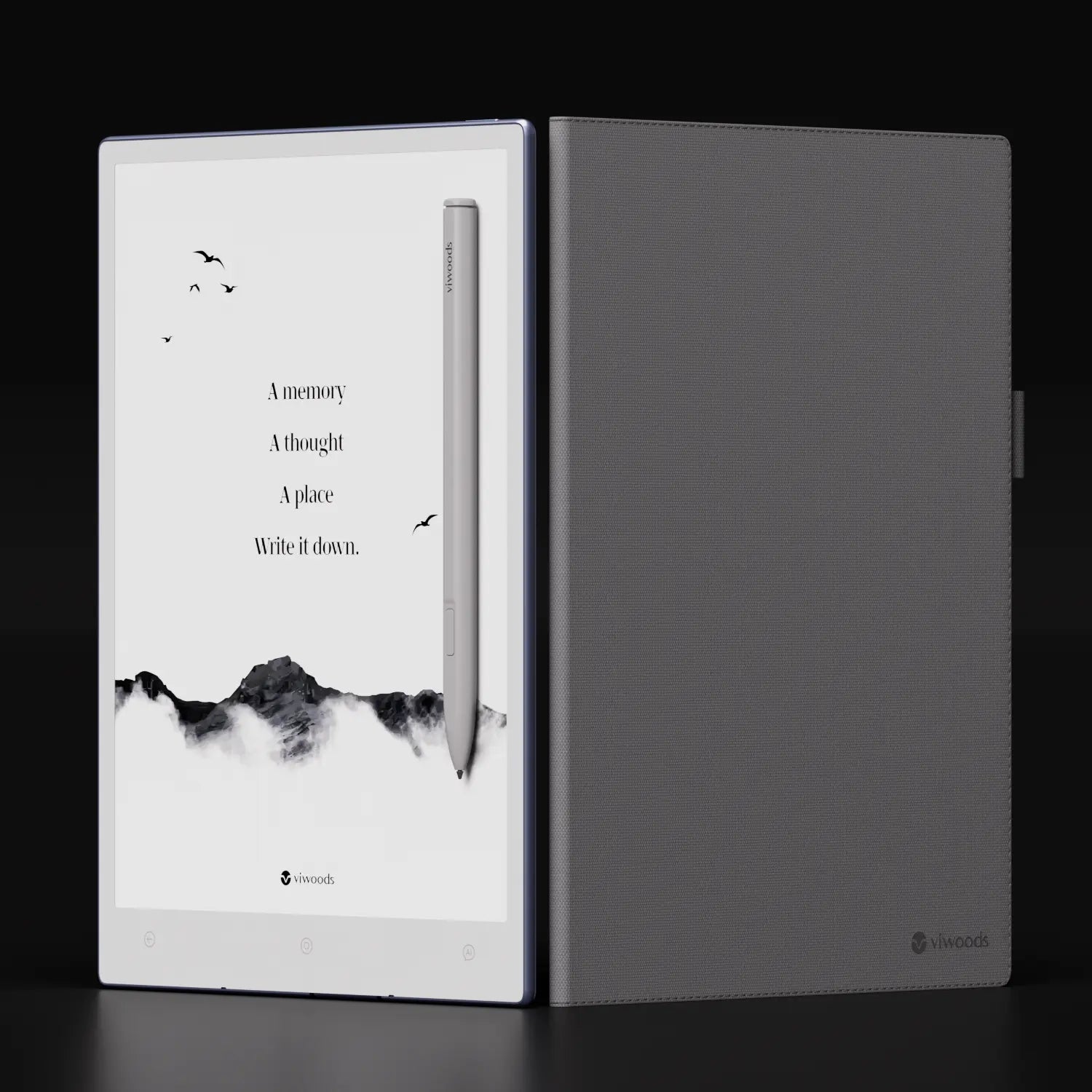
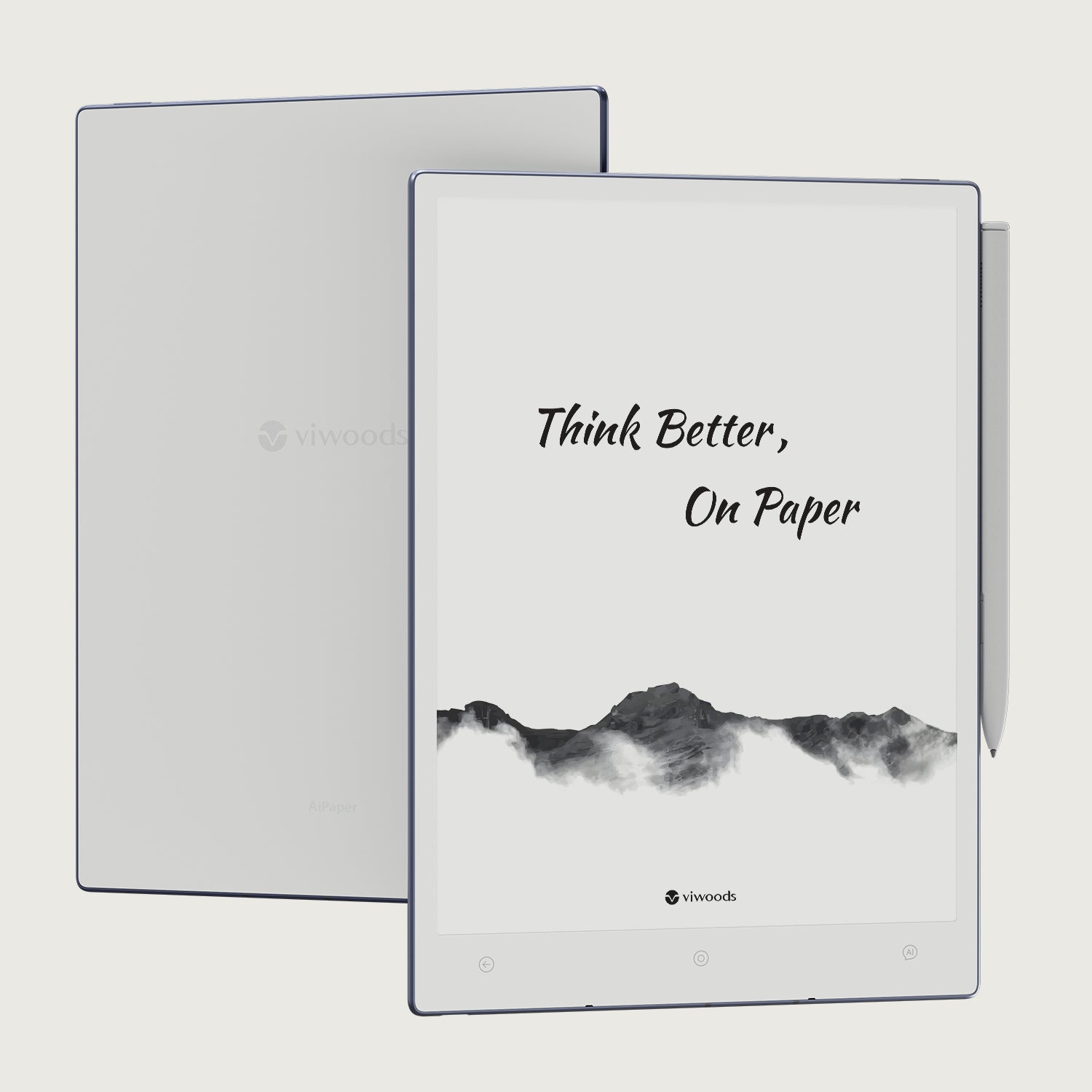
First, Viwoods AiPaper for work notes and PDFs fits naturally into a calm desk setup because it keeps writing, reading, file organization and planning close together.
Next, the larger writing surface helps when a page needs structure. Agenda notes, action items, margin comments and summary sections can sit on the same page without feeling cramped.
Additionally, the stylus-and-case setup supports everyday work movement. A pen that stays with the device reduces friction. A folio-style case helps the setup move between desks, meeting rooms and travel bags.
However, the strongest reason to consider this setup is workflow fit. It creates a quieter layer between reading and execution. That layer is often missing in laptop-only work.
FAQ
Is this setup useful when a laptop is already used every day?
Yes. However, the role is different. A laptop remains strong for production, calls, dashboards and final writing. A paper-style tablet supports notes, reading, annotation and planning in a quieter work layer.
Can a paper-style tablet reduce printed PDFs?
In many routines, yes. PDF review, handwritten comments, margin notes and saved annotations can happen on the device. However, printed copies may still fit special review, legal or archival requirements.
Is handwriting better than typing for meeting notes?
It depends on the task. Typing is faster for full transcripts. However, handwriting often supports selective capture, decision notes, diagrams and slower thinking during complex discussions.
What matters most when choosing a work setup?
First, writing feel matters. Next, PDF tools, file transfer, folder structure, portability and accessory support matter. A setup that fits daily habits is more valuable than a feature list that never becomes part of real work.
Final Recommendation
In short, the best work setup is not built around more apps. It is built around clearer roles. Notes, PDFs and follow-up tasks need a quiet place to form before they become final work.
Therefore, the paper-style tablet should sit between reading and production. It supports the messy middle stage: listening, marking, thinking, connecting and deciding. The laptop can then handle final writing, sharing and presentation.
Create one meeting note template with decisions, questions and next actions.
Build one PDF review folder with a clear naming rule.
Set a weekly cleanup routine so notes, PDFs and tasks stay useful.
Guides Paper Tablet
How to Turn Meeting Notes into Action Items with AI
E Ink Tablet for Training and Onboarding: Manuals, Notes and Knowledge Capture
E Ink Tablet for Field Teams: Offline Notes, Forms and Daily Review
E Ink Tablet for Executive Briefings: Read, Mark, Decide and Follow Up
How to Evaluate an E Ink Tablet Demo for a Business Team
E Ink Tablet Total Cost of Ownership for Business Teams
Fabric vs Leather Tablet Case: Which Material Fits Daily Carry?
E Ink Tablet for Research Interviews: Interview Guides, Field Notes and Follow-Up
Viwoods AiPaper
$549.00
Viwoods AiPaper Mini
$429.00
Viwoods AiPaper Reader Colour
$289.00
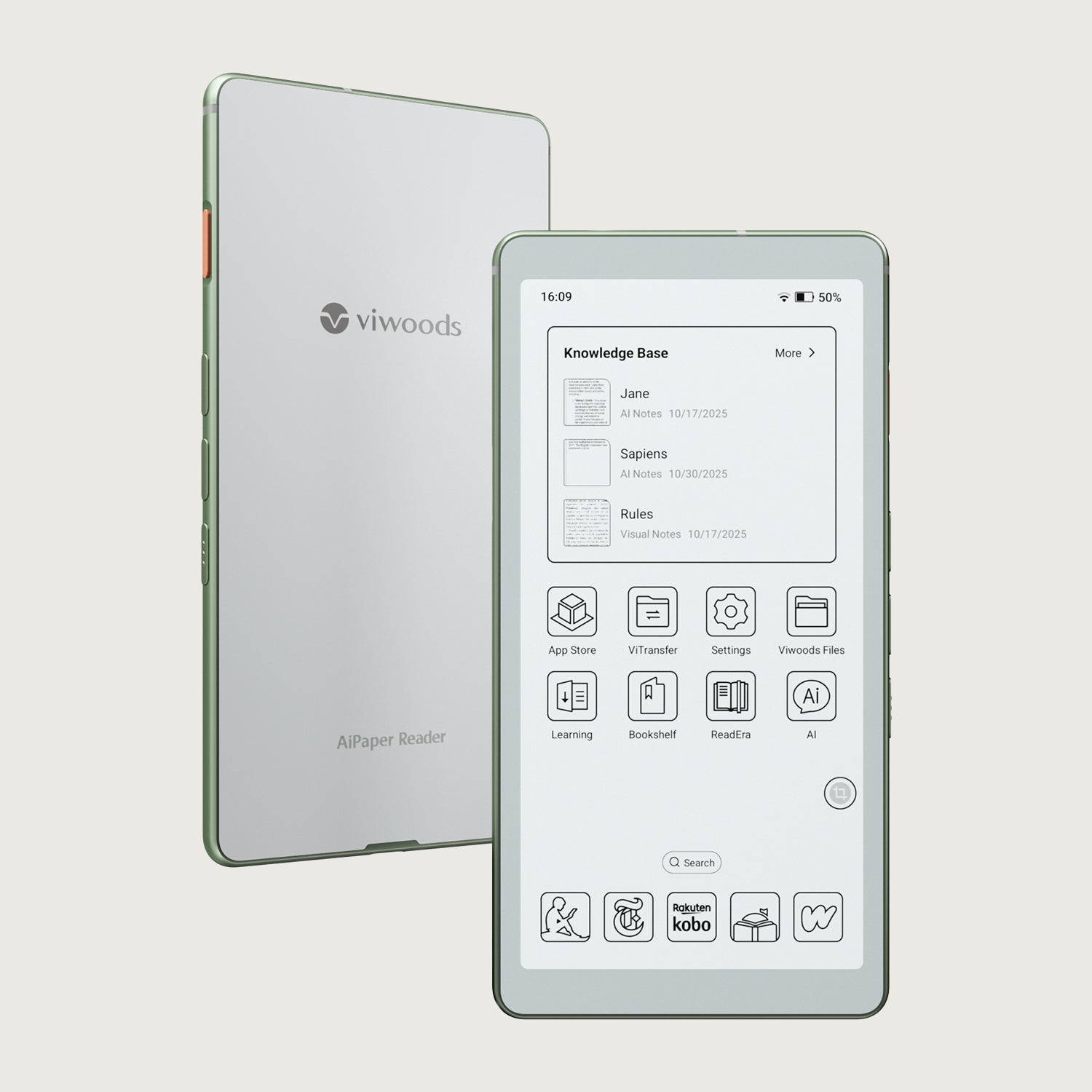
Viwoods AiPaper Reader
$279.00