

Reading on Viwoods is more than following the text. It’s about what happens in between: the ideas that surface, the questions that form, the moments worth saving. When you take notes digitally, those sparks have somewhere to land. With Viwoods Learning, it feels effortless — you can highlight, write, and reflect without losing your place. If you're looking for a way to make digital note-taking feel as natural as reading, this is where it begins.
Take Digital Notes While You Read with On-Page Tools
Everything you read on AiPaper Mini can be interacted with directly. Once you open a document, the tools for marking, capturing, and organizing are already in place, built into the page, ready when needed. Below is a closer look at how each function works to support seamless digital note-taking, one step at a time.

1. Annotate Freely with Pen Tools
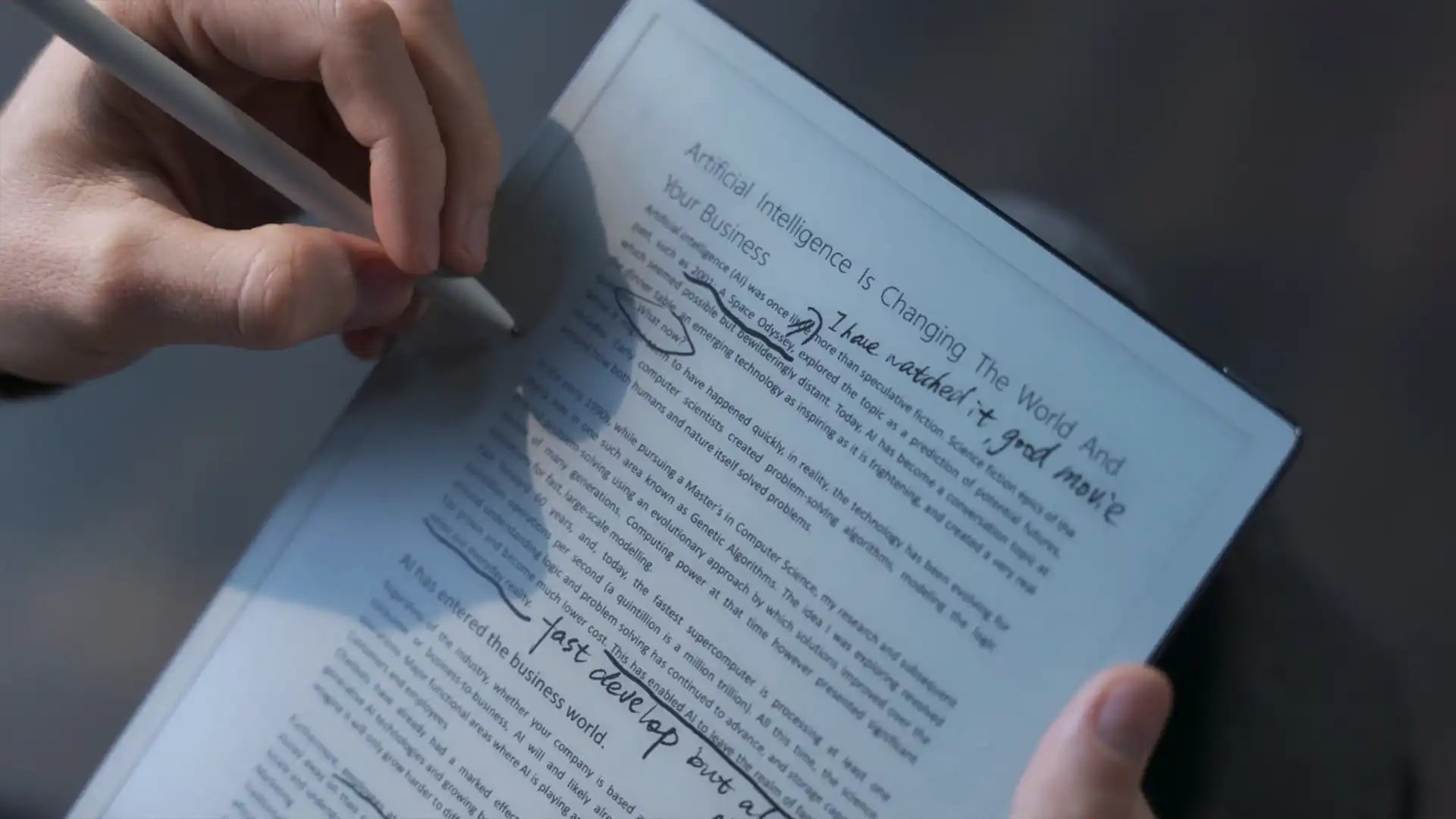
Taking digital notes on Viwoods AiPaper, a digital note taking tablet, often starts with writing directly on the screen. Use the stylus pen to underline a phrase, sketch a quick idea, or add a comment in the margin. These handwritten notes stay anchored to where they were made, so the context never gets lost.
2. Selection Tool: The Productivity Engine
Select Text You Want to Keep or Understand
When reading, you'll often come across sentences you want to save, terms you don't recognize, or points that need follow-up. The selection tool helps you respond right away. Press and hold on the text to bring up options that support note-taking without leaving the page.
Copy, Translate, or Ask for Clarification
Once selected, the content can be copied into a note, translated into another language, or sent directly to the AI Assistant for explanation. These actions help you build notes from the text itself, adding useful context or preserving important information.
Capture Notes Without Breaking Focus
Every action happens in place, keeping you fully engaged with the material. Instead of switching apps or rewriting things later, you can extract and organize information on the spot. The selection tool supports quick thinking, helping you take notes digitally as you read.
3. Erase and Edit with Precision
When a note needs revision, Viwoods lets you erase directly on the page, removing a word, adjusting a diagram, or clearing space to rewrite a thought. It allows you to update your annotations as your understanding changes, keeping your notes accurate and focused.
4. Reading Notes: All in One Place
All highlights and annotations made during reading are automatically collected in the Reading Notes section of the current book. You can view them page by page, select specific entries, and export the content as a single PDF.
In addition, there's a separate Reading Notes folder under the Learning Section gathering notes from all books you've annotated, each saved by book name. It's easier to review everything you've noted without reopening each original document, and to compile your digital notes for sharing or long-term reference.
5. AI Assistant: Built-in Support While You Read
It doesn't take notes for you, but it helps shape them. When you select a sentence or paragraph, you can send it to the AI assistant to ask for clarification, a summary, or deeper context. It will be useful when you're unsure how to phrase a note, need help understanding a passage, or want to explore an idea further before writing it down.
Access More Note-Taking Flexibility with Viwoods Picking
While Viwoods Learning includes its own built-in annotation tools, there's another flexible way to learn how to take notes digitally. The Annotate and Record shortcut, part of the Picking Section, works globally across the system and can be invoked inside the Learning Section as well. Let's take a closer look at how it works and why it matters.
1. Annotate Mode
Annotate mode locks the current screen, allowing you to write directly on the page without accidental swipes or scrolling.
Unlike annotation in Learning, which saves notes inside the document and collects them in Reading Notes:
- It captures a full-page screenshot
- Both the content and your handwriting are saved together
- Files are stored in the Picking > Screenshots folder
It's useful when you want to mark something quickly and save a standalone visual reference.
2. Record Mode
Write on a Semi-Transparent Layer
Record mode adds a semi-transparent overlay across the current screen, allowing you to handwrite directly while viewing the background content. It's designed for flexible, open-ended note-taking — useful for quickly writing down thoughts, outlining ideas, or drafting visual notes as you read with a ceramic nib stylus, especially when you're exploring how to take digital handwritten notes that still feel natural.

How Notes Are Saved
The system captures only what you input: your handwritten strokes and any screenshots you add. It doesn't store the page behind them. Your writing remains fixed in place, untouched by formatting. All notes are saved directly to the Picking directory under Picking.

FAQ
Q1: Is It Better to Take Notes Digitally or on Paper?
It depends on how you work best. Paper can feel more tactile and distraction-free, while digital notes are easier to search, back up, and reorganize. On a digital note-taking device, you still write by hand, but your notes stay collected and easy to review across books and documents.
Q2: How to Take an Organized Digital Note?
Start by deciding what the note is for: summarizing a chapter, saving key quotes, or capturing main ideas. Highlight as you read, then turn those highlights into a short outline with headings, bullets, and brief explanations in your own words. Name your files clearly so you can find them later.
Q3: How to Take Digital Writing Notes?
Treat your digital note-taker tablet like a notebook. Use pen tools to underline, circle, and write directly on the page so your comments stay anchored to the exact sentence or figure you’re reacting to. For more open-ended thinking, switch to a drawing or freeform mode to sketch diagrams, mind maps, or rough drafts.
Q4: How to Take Notes While Reading a Digital Book?
Read normally and only pause when something stands out. Highlight important lines, add a quick margin note, or select text to look up or send to AI for clarification. Over time, these highlights and comments collect in one place, so you can review what mattered without scrolling back through every page.
Digital Note Taker: When Notes Become Part of Reading
Taking notes on Viwoods paper tablet doesn't always begin with a blank page. In the Learning environment, it unfolds alongside the reading process: highlighting key lines, layering handwritten thoughts, or turning to AI to clarify ideas. Each tool is built to capture thoughts the moment they appear, making it easy to take notes digitally without breaking focus. What starts as reading naturally evolves into notes, reflections, and deeper understanding.