A practical guide to choosing an E Ink tablet for PDF reading, annotation, landscape review, and export workflows. Learn when Viwoods AiPaper fits research papers, contracts, manuals, and professional document review.
A long PDF file often needs more than quick reading. It needs quiet focus, page context, handwriting space, and a clear way to export marked pages. Therefore, a serious E Ink tablet for PDF work should support the full flow: import, read, highlight, annotate, review, and archive.

Is an E Ink Tablet Good for PDF?
Yes. An E Ink tablet is good for PDF reading when the file is mainly text, has a stable page layout, and benefits from quiet review. Research papers, legal briefs, engineering manuals, policy documents, study packs, and business reports are strong examples.
However, the best result depends on screen size and export habits. A small eReader can open many files, but dense PDF pages often need more room for footnotes, tables, diagrams, and handwritten comments. As a result, a larger paper tablet usually fits serious annotation better.
The right device should not only display a PDF. It should help the document move from reading to action: mark important lines, add short notes, review key pages, export the file, and keep the clean original when version control matters.
What Matters for PDF Annotation
PDF annotation is not only drawing on a page. A useful PDF workflow starts before the first underline. File naming, folder structure, page view, handwriting tools, and export format all affect whether the marked document stays useful later.
In practice, a PDF annotation tablet should reduce friction. A document should move from import to review without constant switching between a laptop, phone, printer, and notebook. Moreover, the page should still feel readable after notes are added.
Readable page area
A larger screen keeps page context visible. Fewer zoom gestures means fewer interruptions during reading.
Accurate handwriting
Underlines, arrows, circles, and short notes should land exactly where the thought belongs.
Simple organization
Folders and clear file names prevent marked PDFs from becoming hidden work.
Reliable export
Export moves annotations back into research folders, project archives, or shared review packs.
Screen Size and Landscape View
Screen size matters because PDFs are usually fixed pages. Unlike reflowable ebooks, a PDF often preserves A4 or letter-size layout. Therefore, a small screen may show the file but still make the page feel cramped.
Landscape view is also important. Wide tables, two-column papers, presentation decks, and technical diagrams often read better sideways. In addition, landscape reading can reduce constant zooming during document review.
PDF task and screen direction
Academic papers
AiPaper is the stronger fit because two columns, figures, citations, and notes need more page room.
Contracts and briefs
A larger screen helps definitions, clauses, dates, and exceptions stay easier to track.
Engineering manuals
Large screen plus landscape view helps tables, diagrams, and revision marks stay stable.
Short saved articles
AiPaper or AiPaper Mini can work when reading comfort and portability both matter.

Best PDF Workflows
A good PDF workflow should feel repeatable. First, the file enters the right folder. Then, the page gets marked with a clear purpose. Finally, the marked file returns to the main archive, research database, case folder, or project workspace.
In other words, the device should not become a storage drawer. It should act like a quiet review desk where documents move from reading to action.
PDF workflow steps
1. Import the PDF into a named folder.
2. Rename the file with topic, date, and version.
3. Preview the title, headings, figures, and conclusion.
4. Switch to landscape view when the page is wide.
5. Highlight only reusable evidence, risks, or decisions.
6. Add short handwritten notes beside key passages.
7. Review marked pages before closing the file.
8. Export the annotated PDF to the main archive.
PDF Review by Document Type
Research papers
For research papers, the first pass should stay light. Start with the abstract, conclusion, figures, and references. Then, return to the full paper with a clearer sense of what deserves a mark.
Stars can mark strong evidence. Question marks can flag unclear methods. Brackets can identify quotable sections.
Legal and policy documents
For contracts, briefs, and policy files, structure matters. Definitions, obligations, exceptions, dates, and risk language should be marked consistently.
Circles can mark defined terms, triangles can mark risk, and short margin notes can capture questions.
Engineering and technical files
Technical PDFs often include tables, diagrams, revision codes, and small labels. File names should include version details before annotation starts.
Landscape mode is useful for wide drawings, tables, procedures, test results, and approval points.
Which Viwoods Model Fits PDF Work?
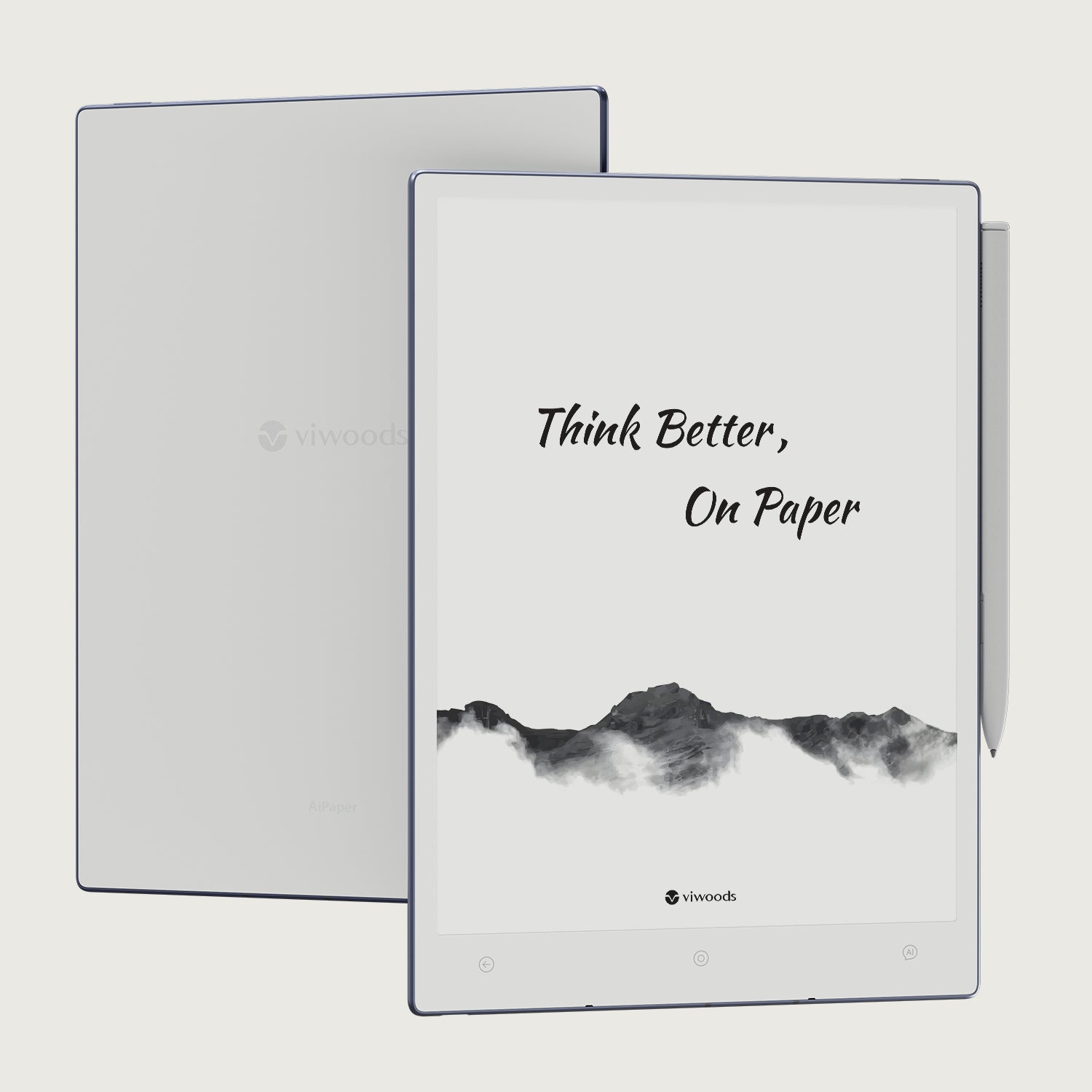
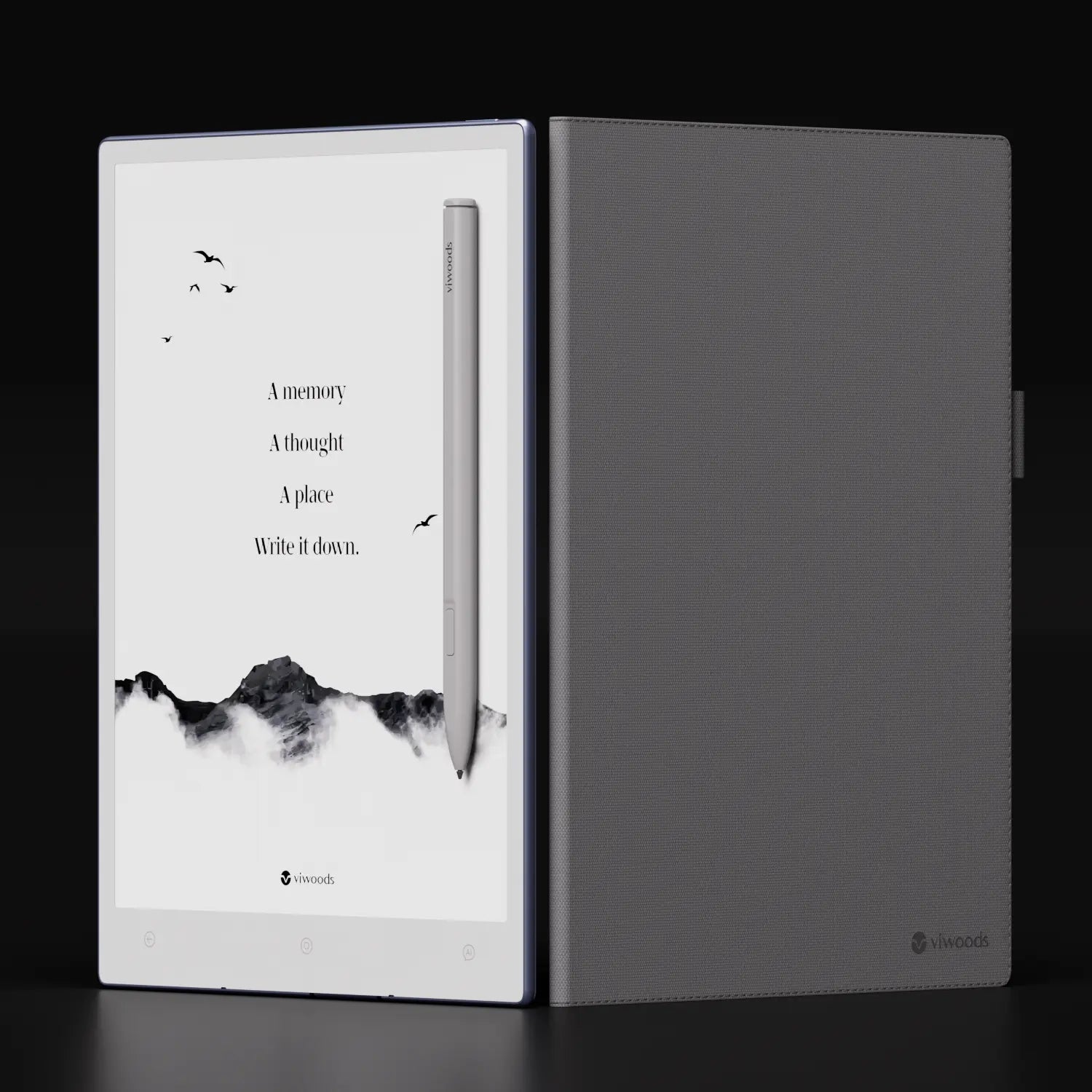
For dense PDF reading and handwriting, AiPaper is the clearest Viwoods recommendation. Its larger paper-tablet format gives more space for full-page reading, margin notes, and landscape review. Therefore, it fits papers, contracts, manuals, meeting packs, and long reports.
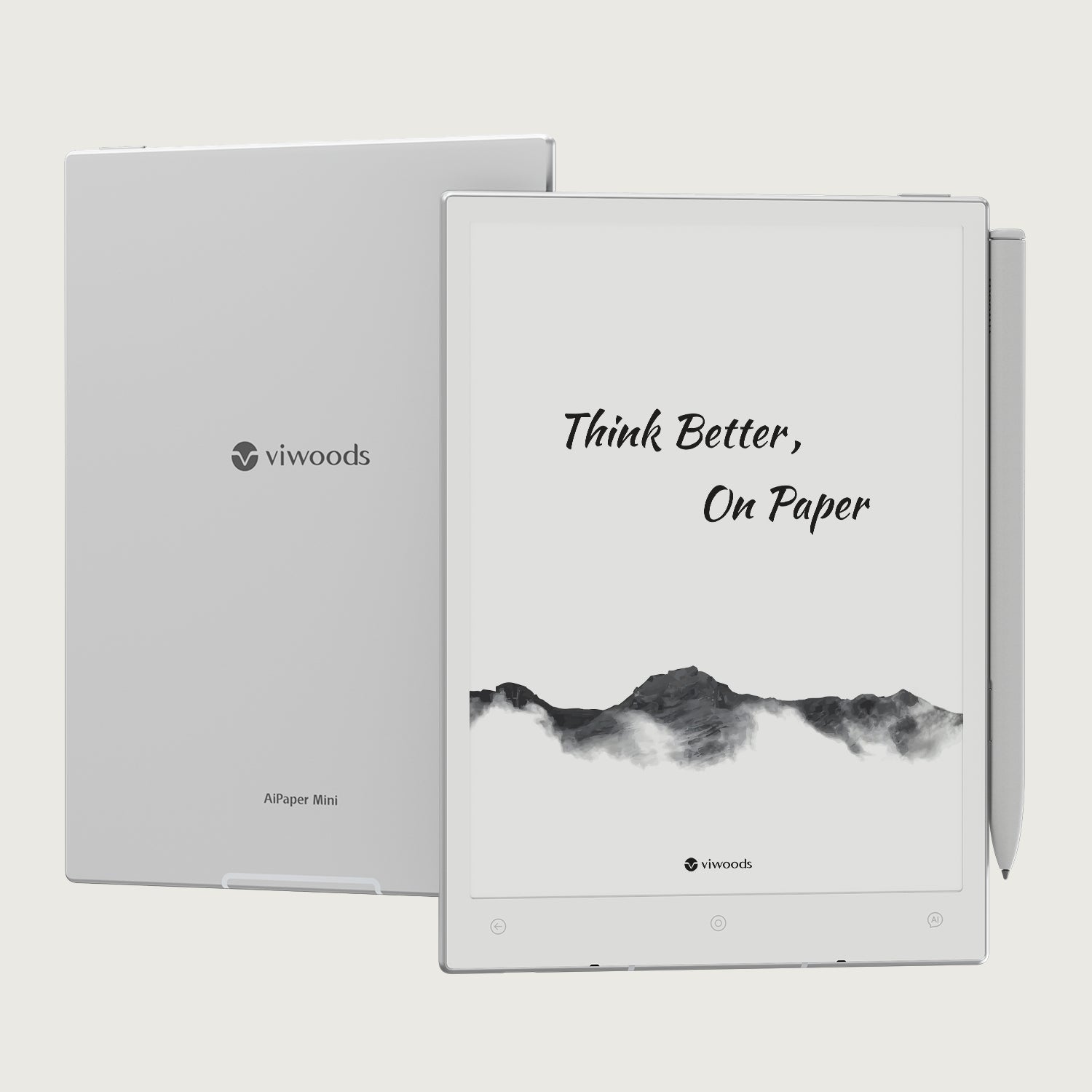
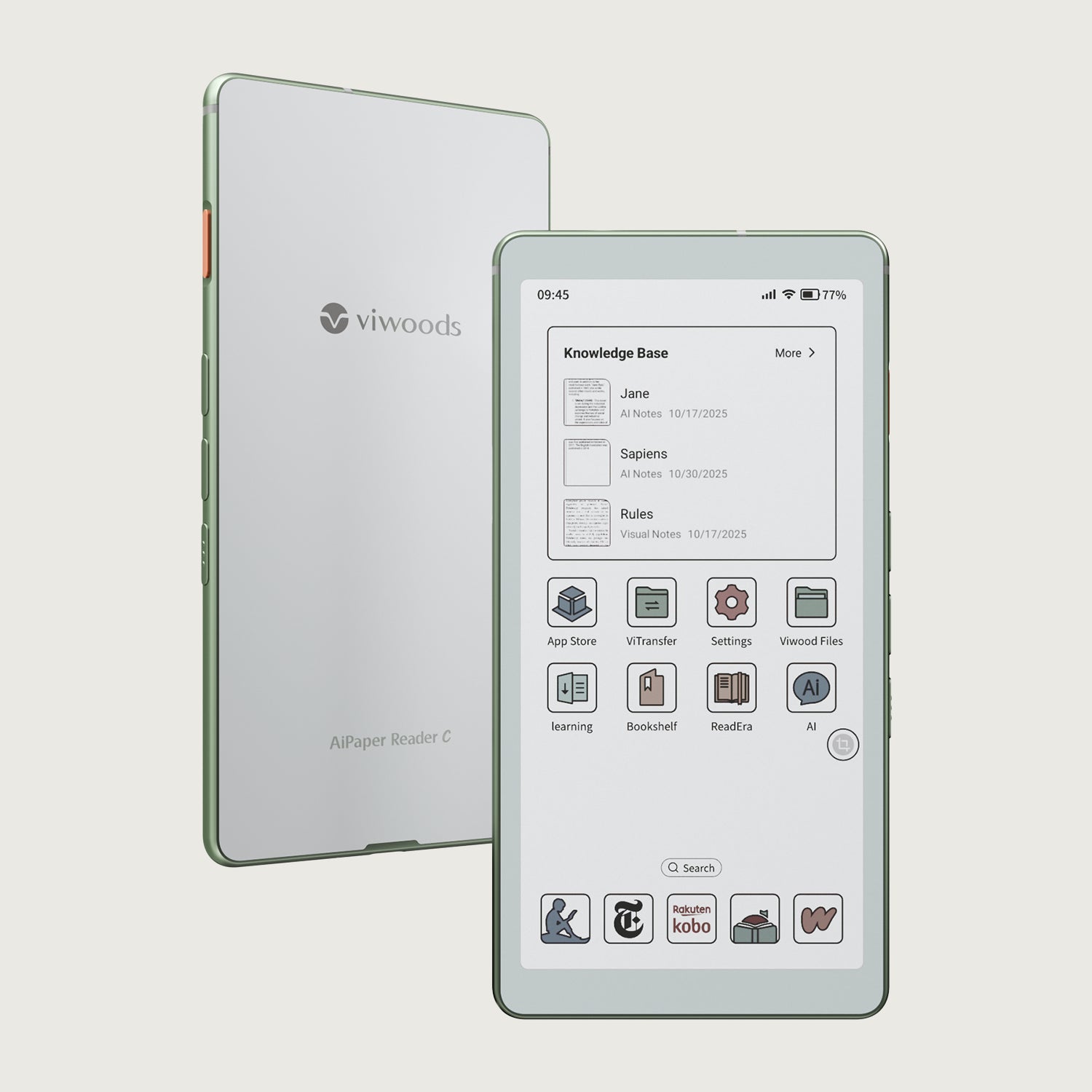
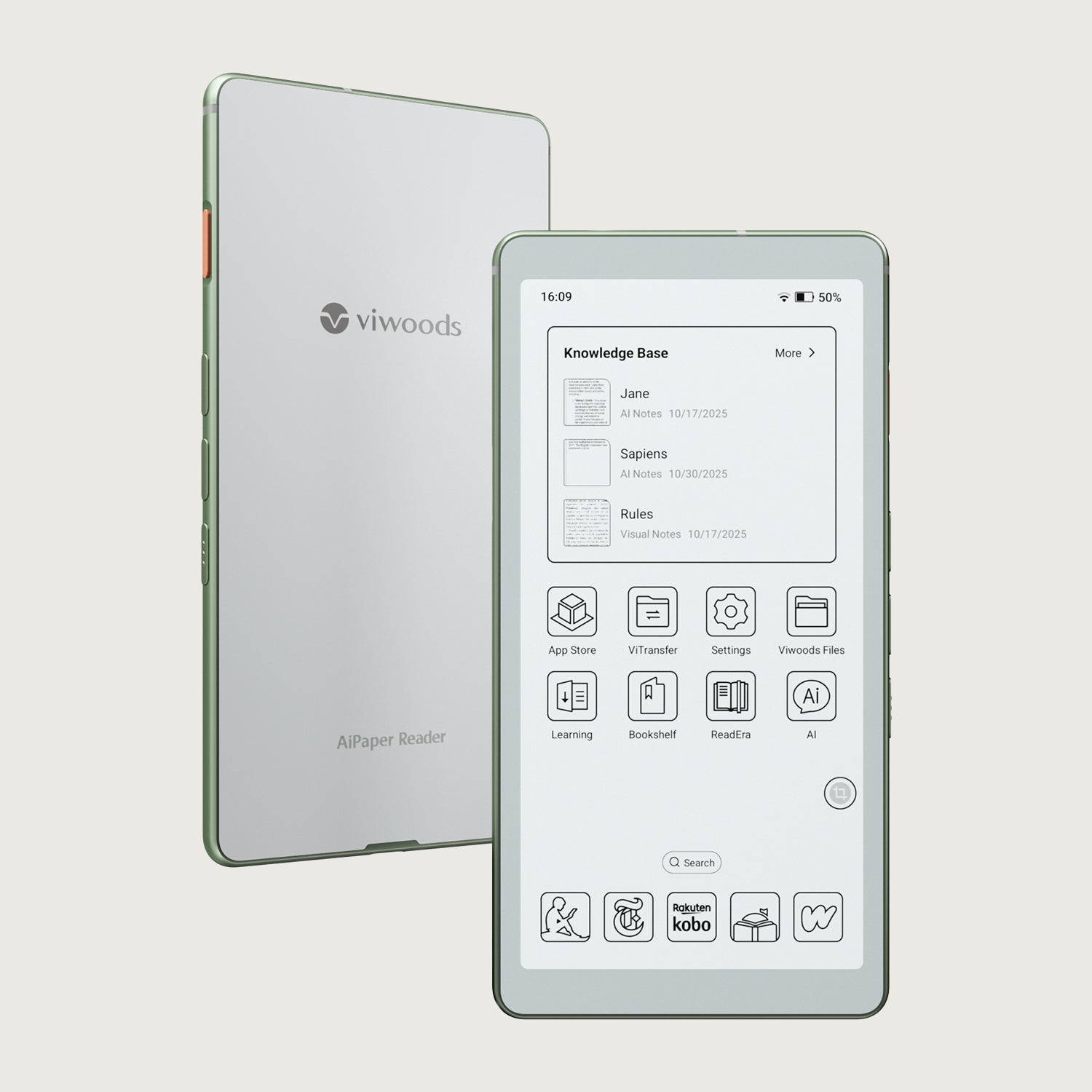
Meanwhile, AiPaper Mini is better for lighter reading and portable notes. The Reader line makes more sense for ebook-first reading. For a broader comparison, the paper tablet collection is the best category page to review.
Long research papers
AiPaper
More page area supports figures, footnotes, margin notes, and repeated review.
View AiPaperContracts and briefs
AiPaper
Stable page context helps with clauses, dates, definitions, and review comments.
Open AiPaperPortable daily reading
AiPaper Mini
A smaller format supports quick notes, lighter reading, and daily carry.
View MiniEbook-first reading
Reader line
Book-style reading needs less annotation space and can work better on a dedicated reader.
Compare ReadersCommon Mistakes in PDF Annotation
A paper-like screen can make PDF reading calmer. However, the workflow still needs discipline. The following mistakes often make annotated files harder to use later.
Choosing a screen that is too small
Dense PDFs need room. Otherwise, reading becomes a cycle of zooming and panning.
Highlighting too much
Heavy highlighting removes priority. Instead, mark evidence, risks, questions, and next steps.
Writing long notes in margins
Margins work best for short comments. Longer thinking belongs in a separate note.
Ignoring landscape view
Wide layouts often read better sideways. Orientation should be tested early.
Exporting too late
Marked PDFs should leave the device before the next review stage.
Mixing clean and marked copies
Clear file names should separate originals, drafts, and annotated versions.
Export Makes PDF Notes Useful
Export is not a small detail. It is the bridge between reading and action. Without export, a marked page may stay inside the device and disappear from the main project flow.
For research, exported annotations can support literature notes. For legal and policy work, exported PDFs keep comments with the source document. For engineering review, exported notes can support revision meetings and technical handoff.
Software updates can improve document habits. The Viwoods update notes are worth checking when a PDF workflow depends on highlights, annotations, and export behavior.
Best Fit and Poor Fit Scenarios
Best fit
A digital paper tablet fits best when the document needs attention. Long reading, careful markup, and repeated review all benefit from a quiet writing surface.
PDF-heavy study, legal review, research, consulting, and technical documentation are strong use cases.
Poor fit
An E Ink tablet is not ideal for every PDF. Color-heavy design proofs, detailed maps, dashboards, and fast slide editing may still need an LCD display.
Use E Ink for focus and handwriting. Use a laptop or LCD tablet for color, speed, and complex editing.
One Authoritative Reference
For technical background on E Ink display technology, the official E Ink How it Works technology page is the most direct reference. It explains the display category behind paper-like reading devices without turning this guide into a technical specification page.
FAQ
Is E Ink good for PDF reading?
Yes. E Ink is good for text-heavy PDF reading, especially long papers, reports, and manuals. Dense pages work best on a larger paper tablet.
What screen size is best for PDF annotation?
A larger screen is usually better. Full-page PDFs, contracts, and research papers need space for readable text and handwriting.
Can I mark up research papers?
Yes. Research papers can be highlighted, underlined, and marked with handwritten notes. A simple symbol system makes review easier.
Is a paper tablet better than an eReader for PDF?
For annotation, yes. A paper tablet offers more writing room and a stronger document workflow. An eReader fits book-style reading better.
Which Viwoods model fits PDF work?
AiPaper fits serious PDF reading and annotation best. AiPaper Mini fits portable reading and lighter daily notes.
Where can PDF support questions be checked?
The Viwoods FAQ is the best support path for file transfer, annotation, export, and device questions.
Build a Cleaner PDF Reading System
First, choose a screen size that matches the document type. Second, use a simple annotation system. Finally, export marked PDFs before the next review stage.
For long research papers, contracts, manuals, and meeting packs, AiPaper is the strongest Viwoods product path. For professional rollouts, procurement questions, or team document workflows, contact Viwoods before building the full setup.
Choose AiPaper when PDF work includes long reading, handwriting, landscape review, and export.
Compare AiPaper and AiPaper Mini when portability matters as much as page size.
Create a weekly export routine so annotated files stay useful beyond the device.