
A practical Viwoods guide for reading PDFs, long articles, research papers, reports, and visual documents. It explains when to choose AiPaper Reader for text-heavy reading, Reader C for color charts, and AiPaper for heavy PDF notes and annotation.
Long documents need more than a bright screen and a file list. ebook readers for PDFs can be excellent for saved articles, reports, essays, manuals, and lighter research files when the page layout fits the screen.
However, dense A4-style papers, two-column journals, wide tables, and handwritten notes often need a larger paper tablet. This guide separates reading-first use from review-first use, then matches each routine with Viwoods AiPaper Reader, Reader C, or AiPaper.
Are Ebook Readers Good for PDFs?
Yes, an E Ink reader can be a strong PDF reading device when the file is mostly text. Single-column reports, saved essays, meeting notes, long articles exported as PDFs, and simple manuals usually fit a compact screen well.
However, not every PDF behaves like a book. Many PDFs preserve fixed page size, margins, columns, figures, and footnotes. As a result, a compact screen may need zooming, cropping, rotation, or landscape view.
Therefore, PDF comfort depends on page geometry as much as device quality. A clean 70-page report can feel easier than a 12-page academic paper if the academic file uses two columns and small captions.
For display background, E Ink describes electronic paper displays as paper-like surfaces used across eReaders and other low-power display products. That calm display character is useful for long reading sessions, especially when the goal is focus rather than fast media.
Saved long articles
Excellent compact fit
Linear text usually reads smoothly on a compact E Ink screen. AiPaper Reader is the natural direction.
Single-column PDFs
Good fit
Readable text and simple margins reduce zooming. Reader, Reader C, or AiPaper can work.
Academic papers
Mixed compact fit
Two columns, captions, and margin notes need more page space. AiPaper is the safer direction.
Charts and slides
Depends on color and size
Color, chart width, and slide layout can affect comprehension. Reader C or AiPaper may fit better.

PDF vs Article Reading
First, PDF reading and article reading should be judged separately. A PDF usually keeps a fixed page layout. Therefore, original page size, margin width, column structure, image placement, and font size all shape the reading experience.
By contrast, articles often behave more flexibly. Saved web articles, newsletters, reading-mode pages, and many ebook files can adjust text size and line width through the reading app. As a result, long article reading often feels smoother on a compact E Ink reader.
For example, a 5,000-word essay saved in an article app may feel natural on a small screen. However, the same essay exported as a narrow-margin PDF may need repeated zooming. In other words, format changes the reading flow.
The format distinction is also reflected in official sources. W3C’s EPUB overview presents EPUB as a digital publication format based on web technologies. Meanwhile, Adobe Acrobat Reader focuses on viewing, commenting, signing, and working with PDF files.
However, format support should never be assumed from the file name alone. Actual reading behavior depends on the device, the app, the source document, and the file itself. Important study or work files should be tested before a full routine depends on them.
Quick Format Judgment
If text can reflow, a compact digital reader usually works well.
If the PDF page stays fixed and small, a larger display helps.
If color explains the chart, Reader C deserves consideration.
If handwriting is central, AiPaper is the safer long-term choice.
If files come from many apps, an Android reading workflow can reduce friction.
When to Choose Reader, Reader C, or AiPaper
The Viwoods lineup can be understood through reading weight. Reader is the compact path for text-first reading. Reader C adds color for visual documents. AiPaper gives more room for heavy PDF notes and page-level review.
For reading-first routines, the ebook readers collection is the natural starting point. It keeps the path focused on articles, ebooks, long-form reading, and lighter documents.
However, AiPaper belongs to a deeper review routine. It is less about quick reading and more about working through documents. Full-page PDFs, handwritten review, tags, and repeated study sessions point toward a larger paper tablet.
Text-heavy reading
AiPaper Reader
Best for long articles, ebooks, essays, newsletters, light PDFs, daily reading, commuting, and travel.
View ReaderVisual reading
Reader C
Best when charts, illustrations, maps, color-coded notes, diagrams, or visual summaries appear often.
View Reader CHeavy PDF review
Viwoods AiPaper
Best for academic papers, technical reports, handwritten notes, tags, margin comments, and repeated review.
View AiPaper
Screen Size, Zooming, and Font Control
Screen size affects reading more than many spec sheets suggest. A compact E Ink reader feels excellent when text can scale. However, fixed-page PDFs need either generous original formatting or a larger display.
For ebooks and many article apps, font size can usually change. Line spacing, margins, and typeface may also be adjustable, depending on the app. As a result, long reading can remain comfortable on a smaller device.
PDF pages behave differently. Since many PDFs preserve the original page, the reader may need zoom, crop, landscape view, or page rotation. PDF comfort depends less on page count and more on page design.
For example, a 70-page single-column report may be easier than a 12-page academic paper. The report may have clear headings and larger text. Meanwhile, the paper may contain two columns, small figure captions, and compressed references.
Text reflows smoothly
Reader or Reader C
Reading feels close to an ebook, so compact reading works well.
PDF fits after light crop
Reader, Reader C, or AiPaper
Occasional adjustment is enough when the page structure is simple.
Two columns require panning
AiPaper
Focus breaks often when the file needs constant zooming and movement.
Color carries meaning
Reader C or AiPaper
Black-and-white may hide chart, map, and diagram context.
Annotation: Light Highlights vs Deep Margin Notes
Annotation should be separated into two levels. The first level is light marking: highlights, short comments, saved passages, or quick flags. This level can work well on a compact digital reader when the main task is still reading.
The second level is deep annotation. It includes handwritten reactions, cross-references, diagrams, symbols, and page-level thinking. Therefore, it needs more room and a more writing-friendly workspace.
For example, a study session may start with a quick read on Reader. Later, selected papers can move to AiPaper for margin notes and structured review. As a result, the lighter device keeps reading portable, while the larger device supports deeper thinking.
Also, annotation should stay intentional. Too many highlights make later review harder. A small set of marks usually works better than a page covered in comments.
A Simple Marking System
Key claim: mark the main idea, not every supporting sentence.
Question: use one symbol for unclear points that need follow-up.
Action: mark points that require a task, meeting note, or source check.
Review: return to marked pages weekly, then archive finished files.

Reading Workflow for PDFs and Long Articles
A strong reading device still needs a simple system. Otherwise, files become another messy inbox. Therefore, the best workflow starts before documents reach the device.
First, collect reading material in one place. Long articles, PDFs, ebooks, reports, and research files should not scatter across too many apps. Next, sort files by task: read, review, annotate, archive, or share.
After that, send the right material to the right device. Reader and Reader C are ideal for daily reading queues. AiPaper is better for files that need writing, tagging, and deeper review.
Collect
Save articles, PDFs, manuals, and ebooks into one reading inbox.
Sort
Separate read-only files from annotation-heavy files.
Rename
Use clear file names with topic, source, and date.
Choose
Send text-first items to Reader or Reader C, and markup-heavy files to AiPaper.
Review
Move important notes into a study outline, project folder, or weekly review list.
A Folder System That Stays Clean
In practice, fewer folders are better. A digital reader should invite reading, not file administration. A useful structure might include Inbox, Reading Now, Articles, Reports, Research Papers, Manuals, Review Later, and Archive.
Meanwhile, AiPaper can hold larger project folders for active PDFs, class notes, meeting documents, or technical references. Completed files should leave the active reading list, so the next reading session is easier to start.

Reading Scenarios and Better Device Matches
Most reading routines do not fit one clean category. A student may read novels, lecture PDFs, academic papers, and saved articles in the same week. Meanwhile, a researcher may move between abstracts, full papers, visual reports, and draft notes.
Therefore, the better question is not which device has the longest feature list. The better question is which reading situation happens most often. That answer usually points to the right screen size and workflow.
Students
Reader fits long chapters and article-style PDFs. Reader C helps with color documents. AiPaper supports written problem-solving and PDF markup.
Researchers
Scan and filter material on Reader or Reader C, then move selected PDFs to AiPaper for annotation and synthesis.
Commuting and travel
Reader and Reader C are practical for trains, airport lounges, waiting rooms, and café breaks. Heavy annotation belongs on AiPaper later.
Teams and business reading
A mixed setup may be more practical than one device for every role. Teams can compare needs through Viwoods Business Solutions.
Common Mistakes When Reading PDFs on E Ink
Many disappointing PDF experiences come from mismatched expectations. A compact E Ink reader can feel excellent with the right files, yet the same device can feel limiting when the file is dense, scanned, or designed for a full-size page.
Treating every PDF the same
PDF is only a container. Some PDFs are clean text documents, while others are scanned images, lecture slides, forms, or two-column papers.
Ignoring page size
Page size matters more than page count. Large pages, wide tables, and small captions usually need more room.
Choosing color without a reading reason
Color is useful when it carries information. Plain essays and novels usually do not need color.
Over-highlighting
Too many highlights reduce clarity. Mark key claims, questions, and actions separately, then review them on a schedule.
Buying before defining the routine
Device choice should follow routine. The best device removes friction from the most common reading task.
How to Prepare PDFs for Better Reading
Preparation can improve the reading experience before the file reaches an E Ink device. A clean PDF usually feels much better than a messy scan. File hygiene should be part of the workflow.
First, source quality matters. Text-based PDFs are usually easier to read than low-resolution scanned pages. Clean text often looks sharper on an E Ink display.
Second, margins matter. Wide empty margins reduce usable screen area. If the reading app supports cropping, the page may become more comfortable without changing the original file.
Third, file names should be clear. A name such as “Project_Report_Charts” is easier to find than “download-final-v3.” This small habit helps both Reader and AiPaper workflows.
Use clean, text-based PDFs whenever possible.
Avoid low-resolution scans for long reading sessions.
Rename important files before transfer.
Send text-first files to Reader or Reader C.
Send markup-heavy PDFs to AiPaper.
Archive finished files to keep the reading list clean.
Practical Buying Direction
For reading-first use, start with Reader or Reader C. For academic PDFs, technical reports, page review, and handwritten notes, AiPaper is the safer choice. For team reading or device planning, contact Viwoods with sample documents and workflow needs.
FAQ
Are ebook readers good for PDFs?
Yes, they are good for text-heavy PDFs, saved articles, manuals, and simple reports. However, dense academic files with small text, two columns, or heavy annotation usually fit AiPaper better.
What type of PDF works best on an eReader?
A single-column PDF with clear text, modest margins, and simple structure works best. By contrast, scanned pages, wide tables, and two-column papers often need more screen space.
Is a color eReader useful for charts?
Yes, Reader C is useful when charts, maps, diagrams, or highlights rely on color. However, plain text articles and black-and-white ebooks usually do not need a color screen.
Should AiPaper be chosen for academic PDFs?
Yes, AiPaper is the better fit when academic PDFs need handwriting, highlights, tags, margin notes, or repeated review. Reader can still work for quick scanning and lighter reading.
Can long articles be read on Viwoods Reader?
Yes, Viwoods Reader is suited to long articles, essays, ebooks, and focused reading sessions. Its compact format makes it practical for daily reading and commuting.
Does every PDF need a large screen?
No. Many simple PDFs work well on a compact device. However, larger pages, handwritten notes, and dense visual layouts usually feel better on AiPaper.
Choose by Reading Weight, Not Feature Count
The best reading setup starts with the document. Light PDFs, saved articles, ebooks, and daily reading queues fit Reader or Reader C. Dense papers, full-page reports, and handwritten review fit AiPaper better.
In practical terms, Reader is the compact text companion. Reader C is the visual reading companion. AiPaper is the document review workspace. The strongest choice is the one that matches the most common reading routine.
Choose AiPaper Reader for text-first articles, ebooks, light PDFs, and portable reading.
Choose Reader C when color charts, diagrams, maps, or illustrated reports appear often.
Choose AiPaper when PDFs require handwriting, tags, margin notes, and full-page review.
Guides أقراص ورقية
Paper Tablet for Meetings: Notes to Action Items
E Ink Tablet for Project Handoffs: Review Notes, Open Issues and Next Steps
E Ink Tablet for Executive Briefings: Read, Mark, Decide and Follow Up
E Ink Tablet for Compliance Audits: Checklists, Evidence Notes and Follow-Up
E Ink Tablet for Research Interviews: Interview Guides, Field Notes and Follow-Up
How to Protect an E Ink Tablet in a Backpack
How to Choose a Protective Case for an E Ink Paper Tablet
Paper Tablet Accessories Checklist: What You Need for Daily Carry
How to Store an EMR Stylus Safely: Protect the Nib, Magnet and Tablet
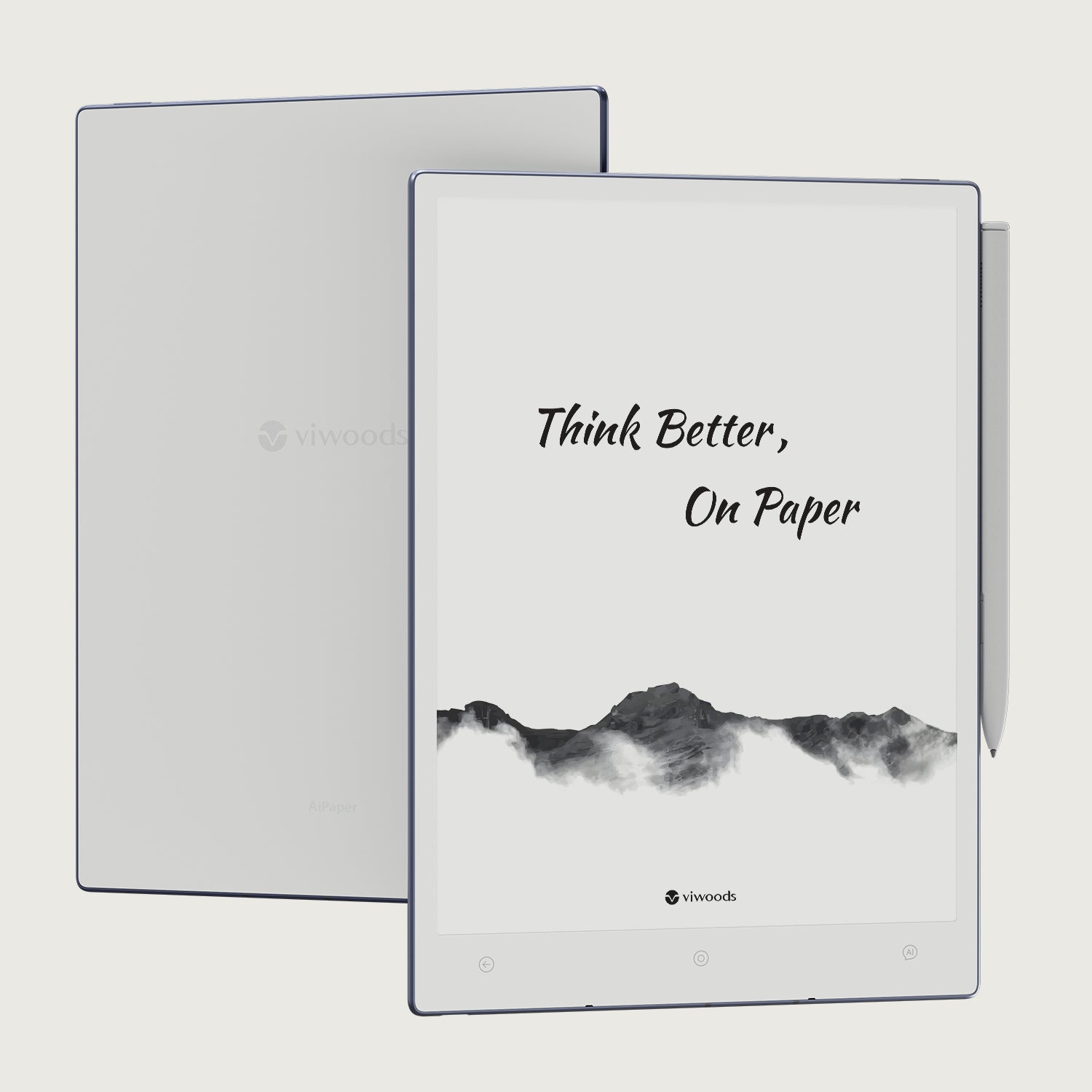
Viwoods AiPaper
$549.00
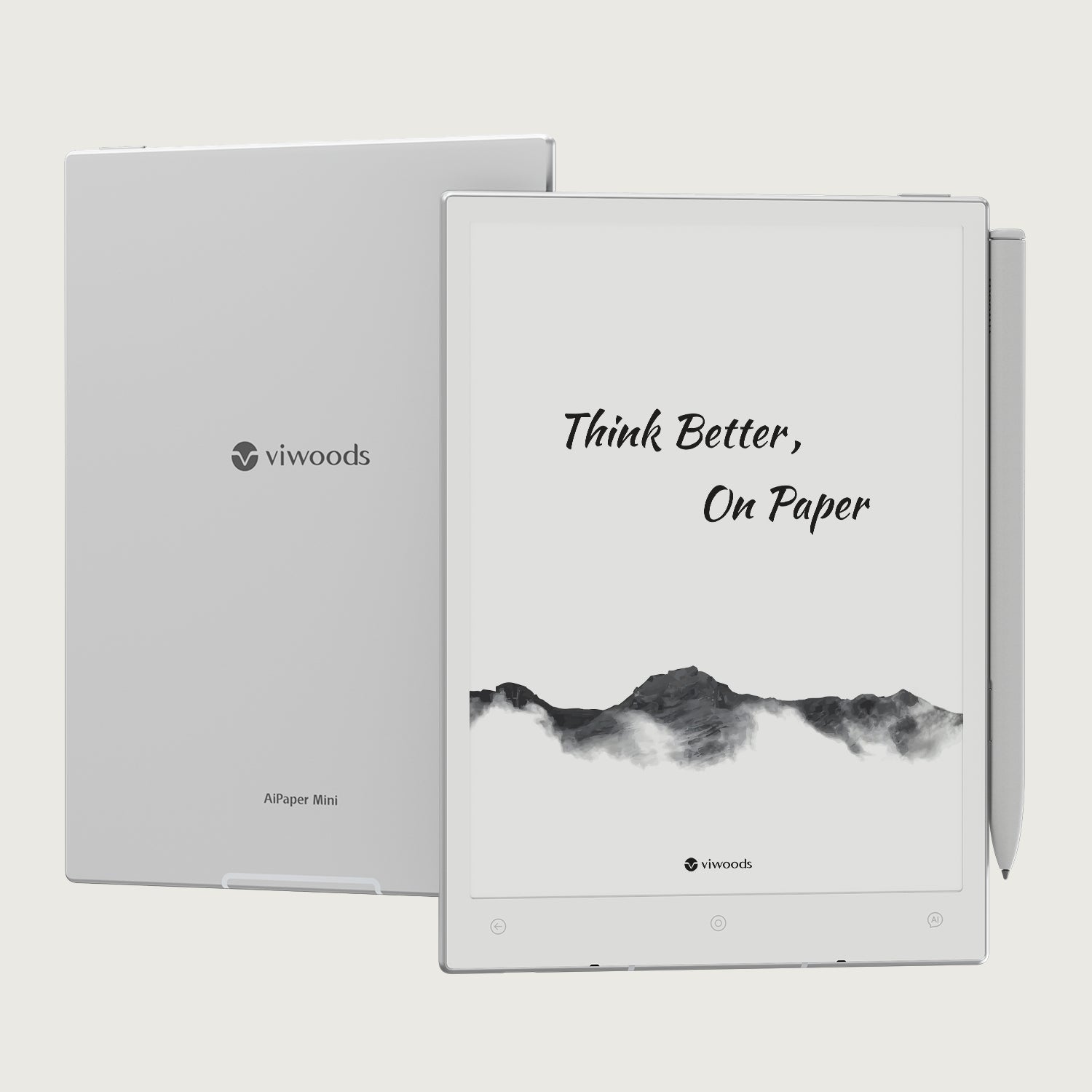
Viwoods AiPaper Mini
$429.00
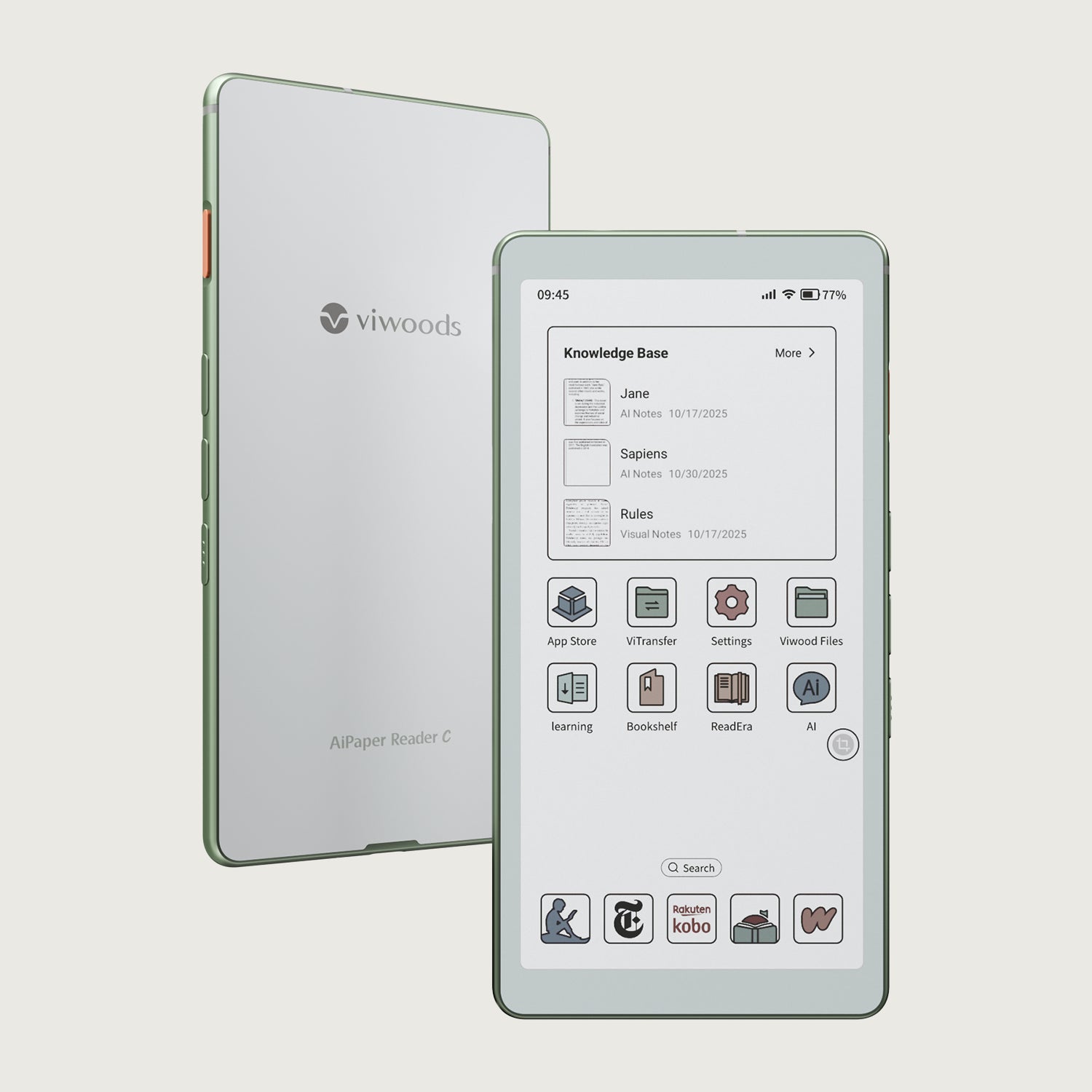
قارئ Viwoods AiPaper الملون
$289.00
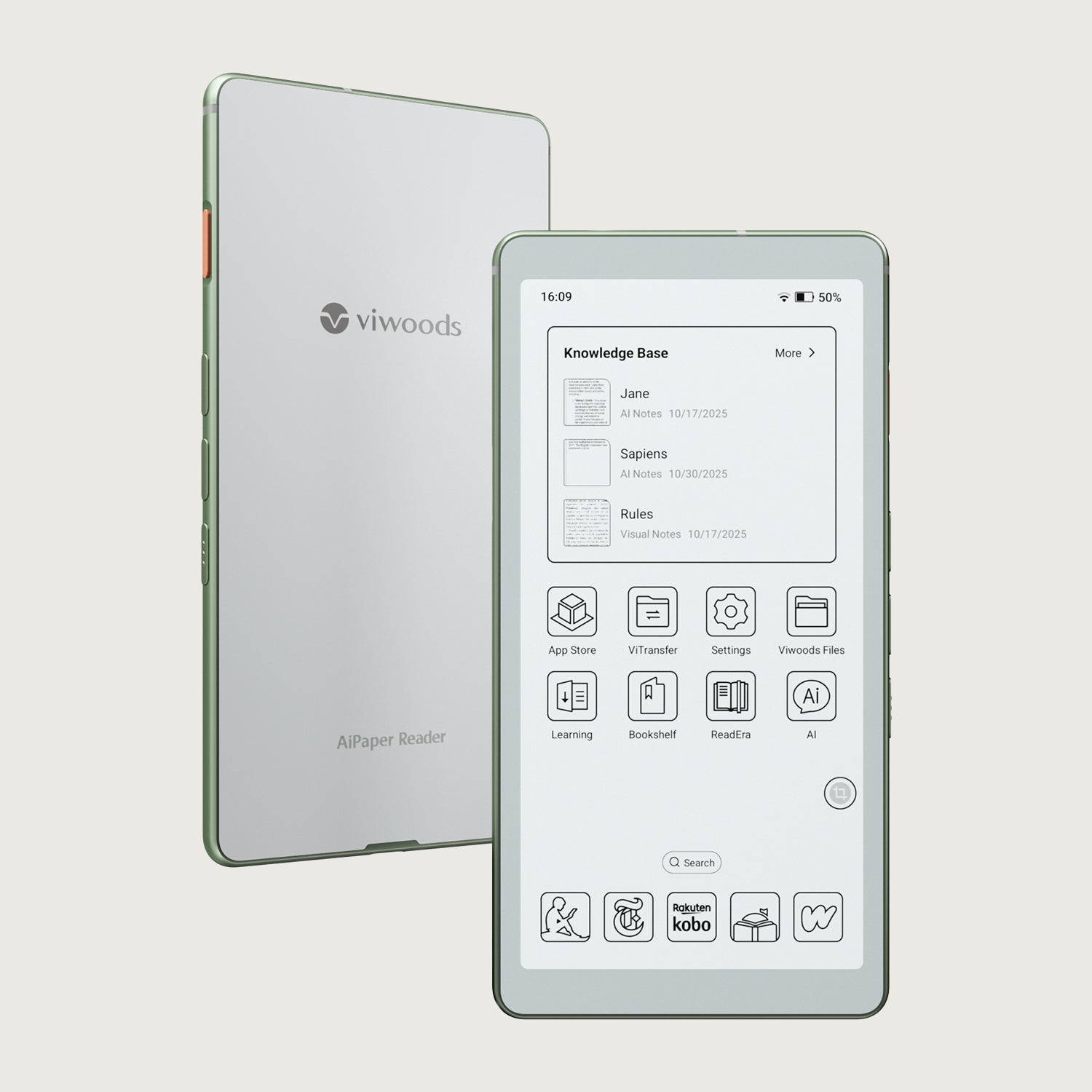
قارئ Viwoods AiPaper
$279.00