
A practical guide to protecting an E Ink tablet inside a backpack through better compartment choice, packing order, screen coverage, accessory storage, and moisture control.
A backpack may feel soft from the outside, yet the objects inside create a very different environment. A charger plug presses into one point. Books shift toward the display. A partly filled bag bends when lifted by one strap. None of these moments looks dramatic, but repeated pressure and poor support can matter more than a visible bump.
The practical way to protect an E Ink tablet in a backpack is to control where the device sits, what touches it, and how the surrounding load moves. A compatible case helps, but it cannot correct an overloaded bag or stop a metal adapter from pressing against the screen.
A safer carry setup does not need layers of bulky padding. Instead, it needs a stable compartment, a sensible packing order, secure storage for the stylus, and a short check before the backpack leaves the desk.
Map the Main Risks Inside the Bag
Backpack tablet protection becomes easier once the risk is separated into pressure, bending, impact, surface contact, and moisture. These problems often appear together, but each calls for a different response.
Broad pressure comes from books, folders, laptops, or tightly packed clothing. Point pressure comes from smaller hard objects, such as a plug, key, cable connector, adapter, or bottle edge. The overall bag may not feel especially heavy, yet one raised object can direct that weight toward a small area of the display.
| Risk | How it appears | Useful response |
|---|---|---|
| Broad pressure | Books or a laptop press across the device. | Leave space and keep flat items parallel. |
| Point pressure | A plug, key, adapter, or bottle edge touches one area. | Move hard objects into a separate organizer. |
| Bending | The backpack curves around a partly supported tablet. | Support the full device on a flat plane. |
| Loose debris | Sand, crumbs, or grit becomes trapped near the display. | Clean the compartment and inner cover. |
| Moisture | Rain, condensation, or a leaking bottle enters the bag. | Separate liquids and damp items from the tablet. |
Bending creates a different pattern. One half of the device may rest against a book while the other sits over soft clothing or an empty space. When the backpack curves, the tablet receives uneven support instead of one flat surface.
Before adding another accessory, empty the backpack and feel around the tablet compartment. Internal frames, zipper ends, key clips, seams, and loaded pockets may reveal pressure points that remain invisible from the outside.
Choose a Dedicated, Stable Compartment
The most useful backpack compartment gives the tablet one predictable position. It should hold the covered device upright and parallel with the back panel without forcing the corners or stretching the zipper area.
The tightest sleeve is not automatically the safest. If the tablet must be pushed into place, the case catches on the opening, or the compartment bulges after closure, pressure already exists before the backpack is lifted.
Check the surface behind the device
Run a hand across the empty compartment. The surface should feel smooth across the full display area. A frame bar, zipper end, internal buckle, or object inside a body-facing security pocket can turn an apparently padded panel into an uneven surface.
Check the bottom clearance
Some backpack sleeves stop above the base of the bag. That gap can reduce direct contact when the backpack is placed on a floor or seat. However, the label “laptop compartment” does not confirm suspended construction. The bottom should be checked physically.
Control side-to-side movement
A compartment that is much wider than the device may allow the tablet to slide and meet the side seams repeatedly. A clean flat folder can fill limited extra space, provided it has no clips, staples, rings, or raised fasteners.
The final fit should feel stable rather than compressed. The device should enter and leave without scraping an exposed corner against zipper teeth, while the backpack should close without pulling fabric tightly across the screen.
Add a Protective Layer for the Screen and Corners
A dedicated compartment controls position, while a fitted protective layer reduces direct contact with the display, edges, and corners. Together, these measures provide more balanced protection than either one alone.
The cover should match the exact device model. A loose case may shift inside the backpack, while an undersized option can place constant tension around the corners. Similar-looking tablets do not necessarily share the same dimensions or attachment design.

Current VIWOODS protective cases can be reviewed by device model before choosing screen-and-corner protection. The useful question is not which option looks thickest. It is which one stays aligned, closes cleanly, and fits the available compartment without creating new pressure.

What a protective case can reasonably do
A compatible folio can cover the display, reduce contact with zipper hardware, and add separation around exposed edges. It can also make the tablet easier to position consistently each time the bag is packed.
However, no case should be treated as an absolute guarantee against drops, bending, or water. Heavy compression still travels through a cover, especially when a plug or bottle edge concentrates the force in one place.
When a separate sleeve adds value
A separate tablet sleeve may help when the backpack has one large main compartment instead of a fitted device section. The sleeve can reduce movement and keep the cover away from rough fabric or loose contents.
Using both a case and sleeve only makes sense when the combination fits comfortably. If the added layers make the compartment difficult to close, the extra thickness works against the original protection goal.
Pack Heavy and Hard Objects Away From the Display
Packing order determines where weight travels. A flat book can provide a predictable neighboring surface, while a charger plug creates a small, hard contact point. Both may weigh less than a laptop, but they direct pressure in very different ways.
Keep books and folders parallel
Books should stand parallel with the covered tablet. Their spines should follow the same direction rather than crossing the device diagonally. A small notebook placed sideways may press one edge into the screen while leaving the opposite edge unsupported.
Spiral bindings, binder clips, and pens attached to notebook covers should face away from the display. Even when the book itself is flat, these raised parts can create a narrow pressure ridge.
Move chargers and power banks into an organizer
Power adapters, cable connectors, and power banks belong in a different pocket. A power bank may look flat, yet raised buttons, ports, corners, and attached cables can still press against one area when the backpack becomes full.
If the bag has only one main chamber, a compact zippered pouch can contain these items. The pouch should sit toward the front of the backpack rather than against the tablet compartment.
Keep bottles outside the tablet zone
A bottle combines weight, hardness, and moisture risk. An exterior bottle pocket is usually more suitable than a shared internal space. When internal storage is unavoidable, a divider should keep the bottle upright and prevent it from rolling toward the device.
Insulated bottles can be especially dense. Even without a leak, a hard lid or base can create a strong pressure point when the backpack lies on its side.
Do not force two devices into one sleeve
A laptop and E Ink tablet should use separate fitted spaces whenever possible. Laptop feet, hinges, and uneven case features can press against the tablet. The combined thickness may also stretch a compartment designed for one device.
Reduce Bending and Uneven Pressure
Bending damage becomes more likely when one part of the tablet has firm support and another rests over a soft gap. A notebook beneath the center, for example, may leave both edges unsupported.
The device should not act as a divider between two irregular groups of belongings. Shoes on one side and books on the other can push in different directions as the bag moves. A packing cube or actual divider should manage those objects instead.
Support the full surface
A flat folder or separate structured sleeve can provide broad support when it sits parallel with the tablet. The supporting item should cover the whole device area and remain free from clips, rings, buckles, or raised decoration.
Random soft padding does not always help. A folded sweatshirt can bunch beneath one corner and create uneven support. If soft material is used temporarily, it should remain flat and should not make the compartment difficult to close.
Do not overfill the backpack
An overfilled bag creates pressure before it is lifted. Zippers pull inward, fabric stretches, and compartments lose their intended shape. If closing the backpack requires pressing down on the contents, the tablet should be removed before that force is applied.
Compression straps also need attention. They can stabilize clothing, but straps crossing the tablet area may squeeze the device after tightening.
Keep the bag in its intended shape
Carrying a backpack by one shoulder for long periods can twist the load. Using both straps keeps the bag closer to its intended shape and reduces sagging on one side.
In crowded transport, removing the backpack before leaning against a wall prevents body weight from becoming display pressure. In an overhead bin, the tablet side should not sit beneath a heavy suitcase or against a moving piece of luggage.
Organize the Stylus, Tips, and Small Accessories
A stylus weighs little, but its tip and clip can create direct contact with the display. Loose replacement tips, adapters, and cable ends present the same problem. Every small hard item needs a defined storage position.
Current VIWOODS paper tablet accessories can be checked when a secure holder, replacement tips, or a separate stylus is genuinely needed. Compatibility should follow the current device and stylus product information rather than appearance alone.

Keep the stylus from moving freely
A loose stylus can slide across the covered device, wedge between two objects, or catch on a seam. A dedicated holder is preferable when the current case design provides one. Otherwise, a small pen sleeve or separate organizer can keep the stylus parallel and enclosed.
Magnetic attachment may be convenient during a short move around a desk. Backpack carry creates more repeated motion and contact with other objects, so a more enclosed storage position is better for longer transport.
Protect the tip from sideways pressure
The writing tip should not carry pressure from books, equipment, or the side of a tightly packed pocket. Spare tips should remain in a small closed container or compatible case slot rather than a loose compartment.
Tiny parts can enter seams or settle beneath the tablet. Once trapped, they become hard pressure points despite their low weight.

Separate cables and adapters
Charging cables should be coiled and placed outside the tablet compartment. Their connectors deserve particular attention because metal ends can scratch or press against a surface.
Adapters, card readers, and small drives should use a zippered organizer. If an attached accessory makes the covered tablet feel raised or uneven, that accessory belongs elsewhere in the bag.
Manage Moisture, Dust, and Loose Debris
Rain is not the only moisture source inside a backpack. A damp umbrella, wet clothing, condensation around a cold bottle, or a loose bottle cap can affect the compartment without a visible outdoor soaking.
Separate wet items before they enter the bag
Wet umbrellas, towels, jackets, and gym clothing should use a sealed or separate area. Moisture can move through adjacent fabric even when the wet item does not directly touch the tablet.
A product page may describe a case material as water-repellent or suitable for minor splashes. That does not make the complete device-and-backpack setup waterproof, so liquid separation remains necessary.
Treat bottle leaks as a packing problem
Bottle caps and seals should be checked before every trip. Sugary drinks create an additional debris problem after leakage because residue can remain around seams and zippers.
Cold bottles and food containers may also develop condensation. An insulated sleeve can reduce contact, but separation is still more reliable than placing a cold container beside the device.
Remove grit before it reaches the screen
Sand, crumbs, pencil material, and dust collect along the bottom and seams of a backpack. When trapped between a cover and the display, normal book pressure can turn small particles into abrasive contact.
- Remove the tablet and all accessories.
- Turn the empty compartment downward to release loose debris.
- Use a clean, dry cloth or soft brush around the seams.
- Inspect the inner cover before closing it over the screen.
- Allow damp fabric to dry fully before repacking.
A sealed secondary pouch can add temporary separation during heavy rain. However, the device should already be dry before entering it. Otherwise, the barrier may trap existing moisture instead of keeping it out.
Commuting vs Longer Travel Packing Checks
A daily commute creates repeated access, short periods of compression, and crowded-space pressure. Longer travel adds heavier luggage, security screening, changing loads, food, and more liquids. The protective principles remain the same, but the final check should match the trip.
Daily commuting: make placement repeatable
A commuting backpack often carries the same laptop, charger, notebook, bottle, and personal items each day. This makes a fixed packing order possible. The tablet should return to the same compartment, while cables and adapters use the same organizer pocket.
Repeated access creates its own risk. A cover may remain open after a quick note, or the stylus may return to the nearest loose pocket. A brief closure and accessory check prevents rushed mistakes.
Crowded trains and buses can trap a backpack between seats, doors, and other bags. Holding the bag in front or placing it on the lap offers more control than leaning against the tablet compartment.
Longer travel: watch the load change
Travel bags rarely return with exactly the same contents. Documents, food, adapters, and new purchases alter the original packing order. These items should move around the protected tablet zone rather than displace it.
During security screening, the protective cover should close before the device returns to the backpack. Small accessories should return to their organizer rather than enter the nearest open pocket.
In an overhead bin, the tablet side should face a protected wall when possible. The backpack should not sit beneath a heavy suitcase, since another bag can shift and apply pressure during movement.
Outdoor, workshop, and study carry
Outdoor trips introduce sand, rain, and damp ground. Workshop carry introduces tools, fasteners, samples, and metal parts. In either setting, the tablet should not share an open compartment with loose equipment.
Study bags create a different challenge: book weight. Books should remain upright and parallel. When the backpack becomes too full, carrying one book separately is safer than forcing the zipper closed around the tablet.
Before-and-After Carry Checklist
A useful checklist must be short enough to repeat. The purpose is to catch a loose accessory, a hard pressure point, or damp fabric before it becomes part of the next trip.
Before the Bag Is Closed
Check the device, accessories, and load
Screen and cover
Remove visible grit, check the inner cover, and close the protective layer completely.
Stylus and spare tips
Secure the stylus in a holder or organizer and keep replacement tips inside a closed container or compatible slot.
Hard objects
Move chargers, keys, adapters, power banks, and hard cable ends out of the tablet compartment.
Books and support
Keep books parallel, support the full tablet surface, and avoid placing a second device in the same fitted sleeve.
Moisture and closure
Confirm that the compartment is dry, the bottle is separated, and the backpack closes without force.
After the Trip
Check what moved during carry
Case position
Confirm that the cover remained closed and that the tablet did not shift inside its compartment.
Accessory position
Check that the stylus, spare tips, cables, and adapters remain inside their assigned storage areas.
Moisture and debris
Inspect the compartment and inner cover for damp fabric, crumbs, sand, or other loose particles.
Load movement
Notice whether books, bottles, or equipment moved toward the tablet while the backpack was carried.
Return-trip adjustment
Correct any movement, pressure point, or damp area before the tablet returns to the bag.
Once the backpack structure and load order are correct, suitable screen-and-corner protection can be compared by confirmed model compatibility.
If loose stylus tips or cables still lack a secure position, current daily-carry accessories provide the next logical place to review compatible storage options.
Frequently Asked Questions
Build Protection Around the Actual Backpack
A reliable routine starts with three decisions: use a stable compartment, separate hard and wet objects, and confirm that the backpack closes without compression. After those checks, a model-compatible case and organized accessory storage can address the remaining contact risks.
Following that order makes it easier to protect an E Ink tablet in a backpack without treating any case, sleeve, or organizer as absolutely drop-proof or waterproof.
Guides Paper Tablet
Paper Tablet for Meetings: Notes to Action Items
E Ink Tablet for Training and Onboarding: Manuals, Notes and Knowledge Capture
E Ink Tablet for Project Handoffs: Review Notes, Open Issues and Next Steps
E Ink Tablet for Field Teams: Offline Notes, Forms and Daily Review
E Ink Tablet for Executive Briefings: Read, Mark, Decide and Follow Up
How to Evaluate an E Ink Tablet Demo for a Business Team
Fabric vs Leather Tablet Case: Which Material Fits Daily Carry?
E Ink Tablet for Research Interviews: Interview Guides, Field Notes and Follow-Up
How to Carry a Paper Tablet and Stylus Together Without Damaging the Screen
How to Choose a Protective Case for an E Ink Paper Tablet
How to Store an EMR Stylus Safely: Protect the Nib, Magnet and Tablet
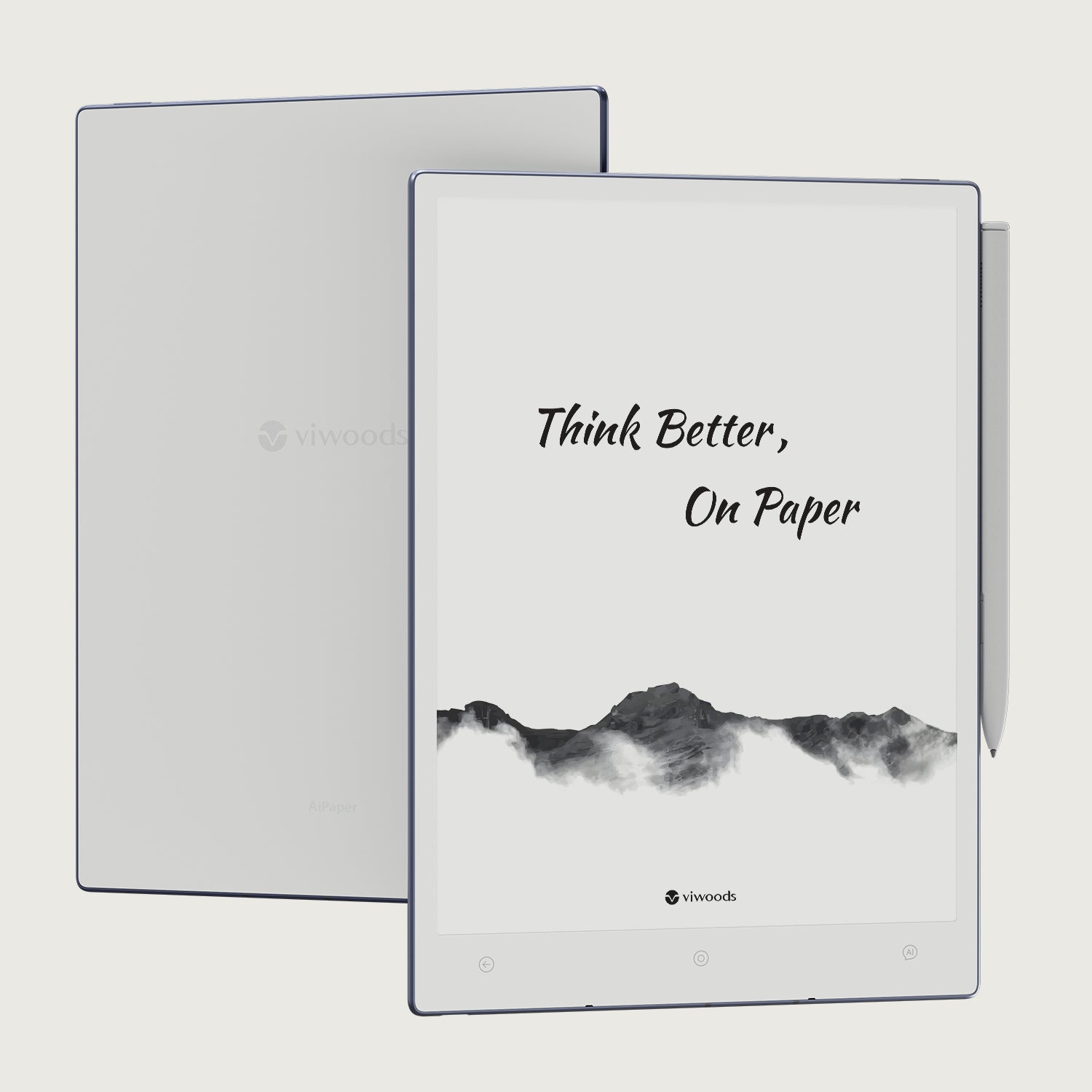
Viwoods AiPaper
$549.00
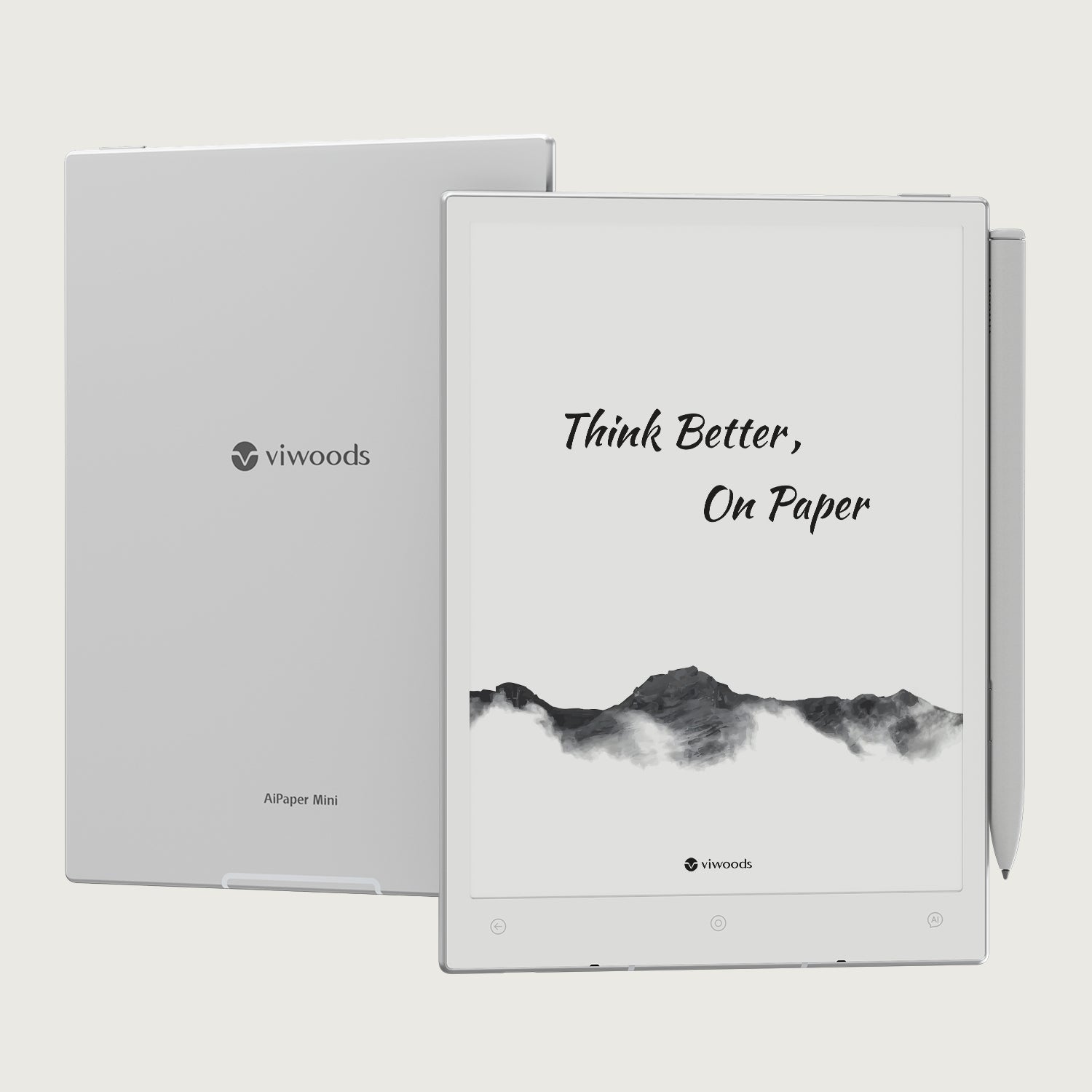
Viwoods AiPaper Mini
$429.00
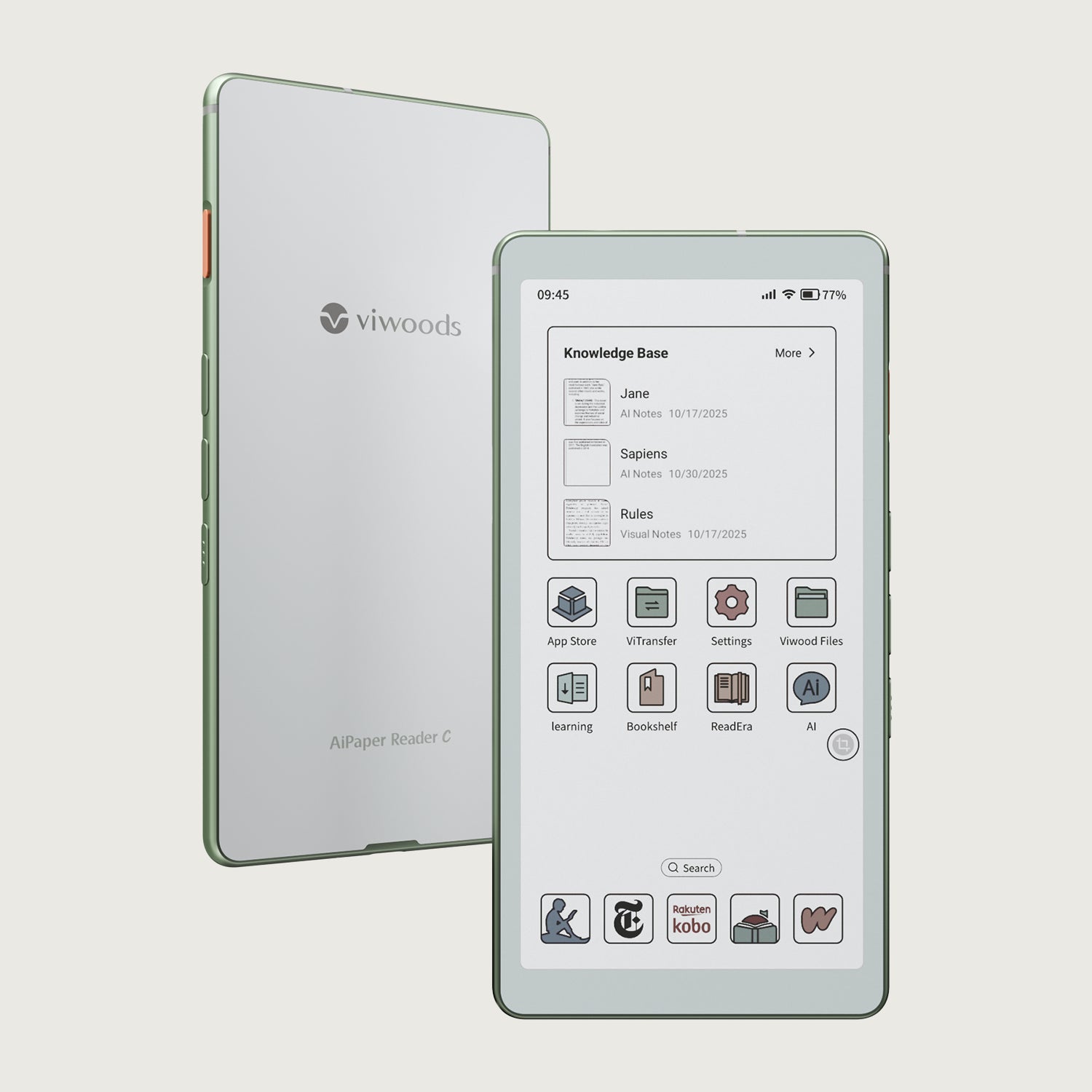
Viwoods AiPaper Reader Colour
$289.00
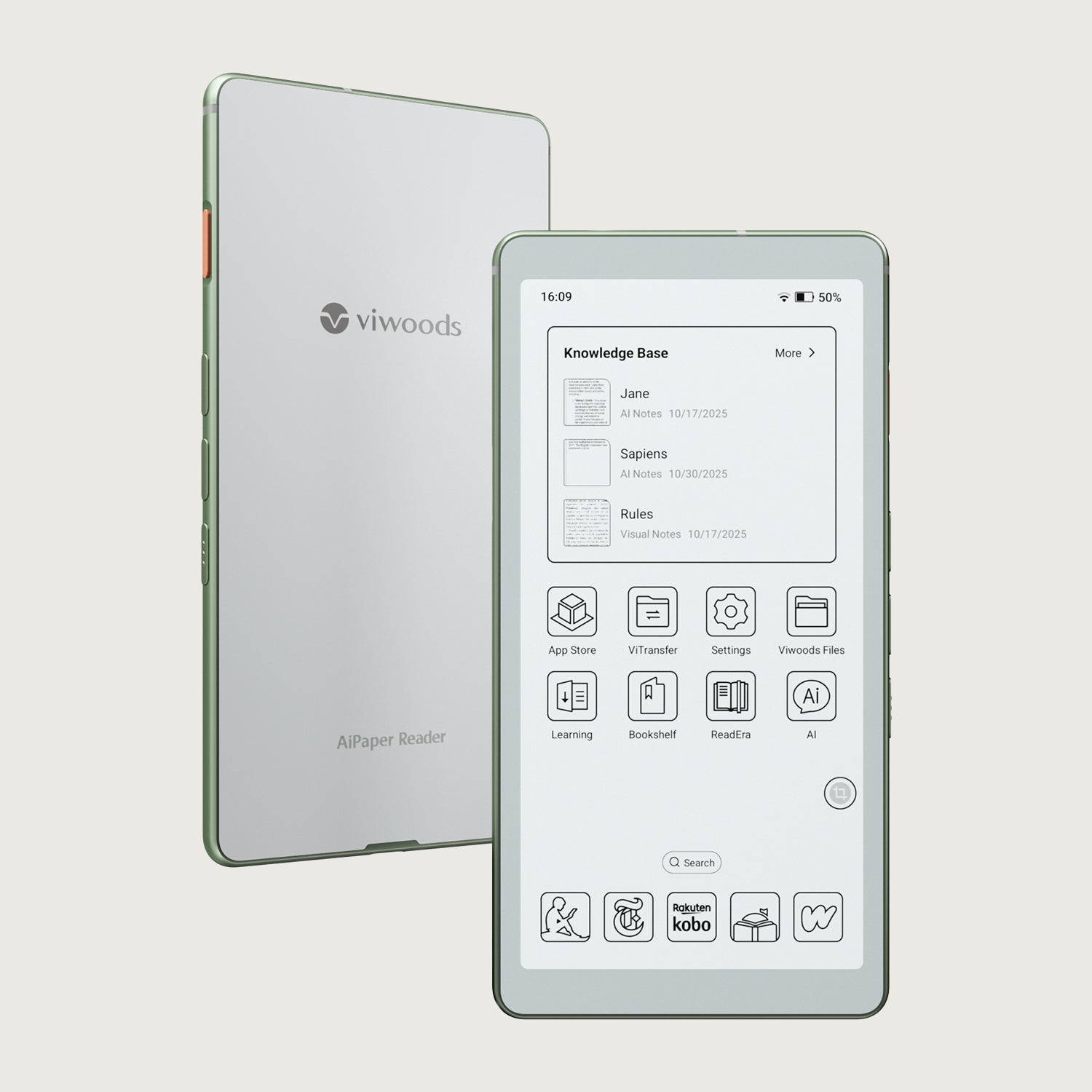
Viwoods AiPaper Reader
$279.00